Showing posts with label tablet. Show all posts

Tuesday, June 23, 2015

Summary of our OneNote tablet project for organization and transitions - successes

OneNote Successes

Teachers that participated in the OneNote Project for the 2014-2015 school year came together to share their experiences, successes and strategies. Many student success stories were shared with the group; along with the OneNote strategies/tools they found the most beneficial for their students. 


Teachers identified many strategies and tools that helped support their students. The top ones that were suggested by many participants were:
  •      HP PageLift which allows students to take a picture of worksheets or teacher notes on a blackboard/Interactive Whiteboard or anchor chart, insert them into their OneNote binder and then annotate on top of them
  •      Screen Clipping which allows students to take a snapshot of text or images from websites and insert that information into their OneNote binder, complete with the URL link and date/time stamp.
  •      Draw Tools which allow students to highlight information (whether digital or images)
  •       Tabs to allow students to organize their work into subject specific sections
  •       Paper options so that students could use graph or lined paper in their OneNote
  •       Tags so that student can identify important information, to dos, or questions to ask

     Teachers also provided some feedback on how they have supported or could support their student’s transition to grade 9. 

      Some of the ideas were: 
  •       creating a grade 9 binder with students prior to the end of the school year
  •       visiting the student’s high school to take pictures of the school map/schedule to place in their OneNote binder
  •       reminding students about the training videos within their Training and Resource Tab that review various OneNote tools
  •       providing information about the OneNote project to high school teachers; and review/teach self-advocacy skills

The participants also provided valuable feedback on behalf of their students. They expressed that daily/regular use of their tablet and OneNote software, the in-class sessions provided by the Itinerant Resource Teachers with SEA Team, and the auto save feature were some of the reasons that their students were able to comfortably use this technology independently.


Teachers felt that their student’s anxiety was reduced and their engagement improved through the organizational aspects and ease-of-use OneNote software. They commented on improved attendance, increased confidence and independence, and a positive sense of ownership and pride in their students.

As well, teachers shared how their student’s achievement improved by participating in the OneNote Project. They noted how their reading and writing improved through using Read and Write Gold in conjunction with OneNote. They also mentioned how their students were now more digitally literate and much more able to keep themselves organized. They were reviewing and revising their own work independently, without reminders, and stated that how through increased engagement and participation their behaviour improved. 


Lastly, the teachers believed their students were better prepared for high school as a result of becoming digital learners, being better able to organize, themselves, improved self-advocacy, and increased confidence.


Thursday, April 2, 2015

Supporting Math learning through AT & activity centres - Northlea E.M.S. spotlight Math & AT project

With such a wide variety of grade level and abilities in her Home School Program, Denise Reiken, who teaches the grade 2-8 HSP at Northlea Elementary and Middle School wanted to explore activity centres with her students as part of the "I've got Assistive Technology in my Classroom, How do I use it in Mathematics." Ms Reiken and itinerant teacher Valia Reinsalu went about planning a way for students to not only have hands-on experiences using technology to solidify their understanding of money concepts, but also to have a fun, practical way to meet all learners needs in the model of differentiated learning.


The class was able to share space with the Library Learning Commons. All three stations or activity centres were set up in designated spaces around the room. Students rotated through the three centres during the morning. Even though they were organized into multiple ability groupings, when they arrived at each centre, each student was given a task that met their readiness and comprehension level. The activities were so engaging that Ms Reiken's students were focused and on-task throughout the morning even though two other classrooms were in and out of the room,

Ms. Reiken stands by the tablet centre. The Adding or Trading Game and IWB were the two other centres which students rotated through during the morning of money value exploration.

The morning's lesson started off with a whole-group Minds-On using the SMART interactive whiteboard.
Students had the opportunity to review what they knew about the values of Canadian coins through the IWB activity.

Then students rotated through each centre spending time to explore their individualized web site or activity.

Tablet Centre
At the tablet centre students were connected to their specific link from the Ontario Education Resource Bank (OERB). The Ministry-licensed site provides multimedia activities which are curriculum links for student uses. (Each school board has student and staff passwords available for use.)
Since the tablets used by the students were touch capable, students went through the activities as if they had their individualized IWB.

Students used a variety of means to go through their specific OERB activity. 
IWB Centre (Northlea's Nutrition Nook)
At the interactive whiteboard students worked in pairs to build menus using digital manipulatives including digital coins and the pen tool to calculate the value of   specific orders.

Students work together to calculate the value of specific orders.
Games Centre
Students used coins, number cubes and game pieces along with addition skills to navigate around a game board.
Students play the Adding or Trading game using different game boards and manipulatives.
Ms. Reiken consolidated the lesson as the whole group gathered to discuss their favourite activity as well as what they had learned about money. To end the lesson, each student completed an exit slip to complete their morning's money exploration journey.


Friday, December 19, 2014

Spotlight Blantyre P.S. OneNote pilot project

As the 2014 part to the school year comes to a close, the students in Ms. Klayman's class at Blantyre Public School are just getting started with OneNote. As part of the AT team's pilot project, the students created their digital binders and had a chance to explore the many helpful tools available to them to organize their daily school work.

In their first session, the Blantyre students became comfortable working with and navigating their new tablet devices. Since their first session, they reported using programmes such as Microsoft Word, Microsoft Powerpoint, and Read and Write Gold as part of their school work completion. Students also used internet websites available on the tablet such as Google Earth and linked to their homeroom classroom teacher's web-based sites such as bitstripsforschools or Edmodo to contribute to class work.
A Blantyre student shows his homeroom classroom's class profile on bitstripsforschools which he uses to complete his Media work. (left) A student swipes to navigate between different programs and apps on the device. (left)
During the past week's session,  students set up their OneNote notebooks and tried different ways to organize information within their new digital binder's pages. Ms Klayman's class used tools such as Screen Clipping and tags.

Tagging helps students to organize ideas, process and questions. This Blantyre student did a screen clipping from a web site. He tagged parts of the captured web page within OneNote then created a tag summary page. (right)
Ms Klayman's class also used the app HP Pagelift to make non-digital work digital withing OneNote. After bringing a reading assignment into their OneNote binder, they brainstormed ways they might be able to use this tool daily:
  • If you get a paper you have a backup..
  • Take a picture of your textbook so not to have it so heavy in your backpack.
  • Help me put my homework or notes into OneNote…
  • Art – can edit my art digitally..make it virtual
  • History – take a picture of notes
  • (chart paper) charts for Math 
A Blantyre student captures a handout about Brain functions using HP Pagelift.
(left) Capturing the page. (right) Editing and cropping the digital image. 
The group of Blantyre students brainstormed five ways that the OneNote can help them to organize their school work. 
When they are back in January, these students will only improve and individualize the way they use the tools and the tablet to support their learning and academic achievement.


Thursday, November 13, 2014

OneNote pilot project reflection

Reflecting on our 2013-2014 OneNote Pilot Project


Our OneNote Pilot Project was born from our team’s desire to support the transition of our at-risk students with special educational needs move from intermediate to secondary school.  Many of our students struggle with executive functioning, particularly when it comes to organization and planning which is why we chose OneNote. 

Microsoft OneNote is a digital notebook in which the student can directly make notes and gather material. The student can collect, organize, and share their notes in this electronic format that is a substitute for the traditional binder – no more lost handouts or schoolwork!

During our Pilot we supported 216 students at 26 schools across the Toronto District School Board.  Of those students:
  •       73% say that they finish and hand in their class work, homework and assignment on time always or most of the time
  •       75% say  that since using OneNote, they use their class time appropriately to complete their work always or most of the time


Check out our latest YouTube video which summarizes our OneNote Pilot: http://youtu.be/jimH3_5PxU4

Follow us on Twitter: https://twitter.com/AssistTech

Friday, October 10, 2014

OneNote intermediate project now underway

We are extremely excited to announce that our OneNote project is now underway! Twenty-five teachers attended professional development sessions at either our Burnamthorpe or Terraview learning centres. Teachers learned about OneNote’s many features available to support our Intermediate students in Special Education classes with organizational and other executive function needs.

The day's group of intermediate special education teachers had the opportunity to explore the OneNote software and create notebooks and pages of their own. They also learned how to use tools such as templates, tables, and tagging and engaged in meaningful professional dialogue on how these tools could benefit the students they are supporting. 


Using templates (left) and tagging information (right) just two ways the OneNote software supports student organization.

Teachers learned how the use of assistive technology tools will better enable their students to be successful not only in their Special Education classrooms, but also in their rotary subject classrooms as well and that this will help to better prepare them for their eventual transition to secondary.

Teachers share all the things they have learned about the OneNote software.

Teachers had the opportunity to practice doing research as their students might, using assistive technology tools.

Wednesday, June 25, 2014

OneNote spotlight: Brookside P.S. intermediate HSP

OneNote at Brookside Public School

Brookside Public School is one the latest schools to begin the OneNote Pilot Project. Under the support of their classroom teacher, Judith Churchill, and Itinerant Resource Teacher, Renée Keberer, the students have been exploring the power of Microsoft OneNote and the many features of the HP tablet. 

Two students have just received their tablets.
Mrs. Churchill with her class after they have all received their tablets.

Through their four in-class sessions, the students have become well versed in the unique features of OneNote, such as Screen Clipping, hpPagelift, Audio Recording and Tagging, and have seen valuable and practical ways of taking this technology to all of their classes to support their learning and organization.
Some ways the students at Brookside P.S. shared they have used OneNote.


The students have created their virtual binder so that all of their subjects and corresponding worksheets and assignments are in one convenient place – organized and easily found.
One student is inserting a table into his OneNote Binder.
During the final session, student shared some of the highlights of the OneNote project and created their own list of the “Top 5 OneNote Tools” for them.
Students shared what they liked most about their tablet and the best thing they have learned.
Students used OneNote (Table and Snipping Tool) to create their “Top 5 OneNote Tools”.
The staff and students at Brookside P.S. shared some of their thoughts about OneNote:

“OneNote has enabled my students to demonstrate their full potential in the classroom. I have watched their productivity and confidence soar.” ~Mrs. Churchill
“Screen Clipping is easy because it is like copy and paste but quicker – just draw a rectangle and it automatically puts it into OneNote.” ~ Veronica
“I like OneNote because it is easy to organize your stuff.” ~ Victoria
“OneNote is good to research, find images and insert video links.” ~ Venujan

Monday, April 21, 2014

Intermediate OneNote pilot update - week of April 14

Intermediate Special Education classes continue to join the pilot. During the week of April 14th, many school were introduced to their tablets for the first time via the "tech session". Some other schools began their "My favourite" research project using the tools and organizational strategies of Microsoft OneNote. All students are excited and appreciate the power of their new devices. Here's a few photos from a few of our classes.

Bowmore Road Junior and Senior School - Intermediate HSP


Photos: Students receive mice (top left) and customize their devices (top right), collaborate and share strategies. (bottom left), Blake shares how to customize the camera options . (bottom right) Umer and Feris finish their brainstorms for topics: My favourite..
Brookside Public School - Intermediate HSP
Brainstorming and then e-printing their brainstorm list for "My favourite" research project. 

D.A. Morrison Middle School - Grade 8 HSP


Students exploring and setting up their new tablets.

Monday, April 14, 2014

OneNote pilot celebratory video and check-in with intermediate pilot schools throughout the TDSB

Our phase 1 portion of the Microsoft OneNote project is complete. And in other special education classrooms across the TDSB, the journey to organization and independence using OneNote has just begun.

Enjoy another of our celebratory videos. This one shows phase 1 schools' OneNote project review:


Buchanan Public School


These students were excited about sharing what they had done on the tablets. Most said they were using it for Notes, Microsoft Word and school work!  


Heritage Park Public School

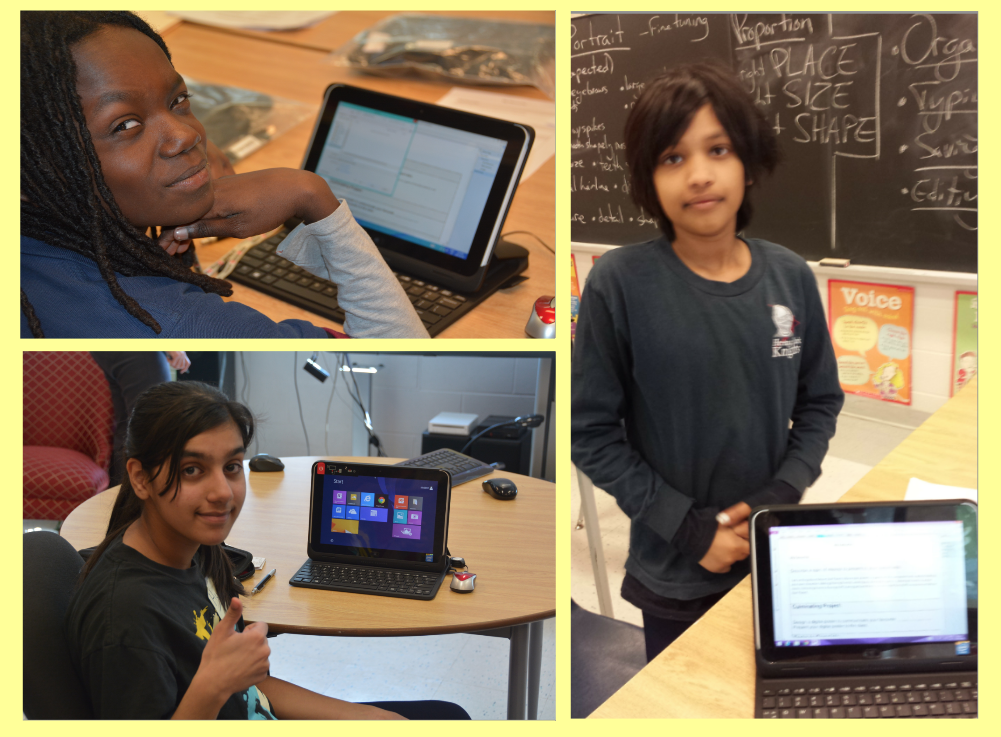
Heritage Park students using OneNote in various ways including Karishma (photo right), who discovered using keyboard shortcuts help her navigate through work on the tablet.
At Heritage Park P.S., the kids were excited to get started with OneNote.  The students are very tech savy and fairly quickly figured out how to start customizing OneNote tabs.  The Heritage Park teacher, James Watt, also mentioned that one of the girls, Karishma, figured out all the keyboard shortcuts on her own. They were using the shortcuts for an activity they were doing - baking brownies.  

Mr. Watt uses the document camera and students take pictures and write notes using their tablets as well.

Lanor Public School


"This is better than a Promethean board and it is one of the things included in your dream room."   Andrew (photo left) was also thrilled that Read and Write 11 was installed on the tablet.


Other students were excited to try their new tablets as well: Emily said, "They are smaller than a computer and easier to carry around. They are our own and no one can mess them up." While Shea added: "Small and handy." 
Students at Lanor P.S. explore their new tablets.

West Hill Public School


West Hill P.S. students find out what equipment and peripherals they will be using during the OneNote pilot.

Thursday, April 3, 2014

OneNote pilot in full swing - check-in at various schools across the TDSB

While a number of pilot schools are just finishing off participation in the A.T. team's OneNote pilot, other schools are just getting started. Here's a round-up on some sessions happening throughout the TDSB.


Students in Aleem Remtulla's ASD ISP class at D.A. Morrison M.S. concluded their sessions. They reflected on what they have learned so far:


Mr. Remtulla's students share their thoughts in different ways.
Other schools such as Birch Cliff P.S., Eastview P.S., and Heritage Park P.S. are just starting with technical sessions completed.


Ms. Saunders' students share how they've used the tablet to support their learning so far.

Mr. Watt's students share ways they already use technology.

Wednesday, December 11, 2013

Lawrence Park C.I. launches OneNote pilot

OneNote Pilot Launches at Lawrence Park C.I.

Another OneNote launch took place in Ms Petersen’s grade 9 and 10 GLE class at Lawrence Park Collegiate.  Students received a brief overview of the tablet; including how to start it, change the password, power off mode vs. sleep mode, and how to print.


Students had eagerly anticipated the launch of the pilot in their classroom and enjoyed exploring the capabilities of their devices.  Max was excited about using Read and Write Gold in conjunction with Word.  Thomas independently found the HP page lift app and began experimenting with how he could digitize handouts. Emma commented how she could use the draw tools in Word for hyperbola in Math. 


All of the students quickly accomplished the goals of the introductory tech session.  Ms Petersen and her students are looking forward to their next session after the winter break. 

Thursday, June 16, 2011

iPad in ASD Classrooms - QR code (scan for link)


You may have seen these two-dimensional (2D) designs around. These are called quick read codes (QR codes in short). A QR code contains a wide variety of information. The one below is the direct link to the home page of the iPad in ASD classrooms pilot project link. 


All you need is a bar code/QR code reader and your phone.
After the code is scanned by your camera on the phone (four points are read and interpreted), you will have the direct link to save to your phone. Or, you can share the link by e-mail.

Informative and fun! 

(We have a variety of QR codes on our blog. Did you see them? 
We'll be adding more as the blog develops.

Engaging boys in literacy - Forest Hill - session 6: June 6-8

Session Six – June 6th – 8th

Session Six focused on student presentations of the culminating projects. The students communicated their ideas in a variety of ways using audio texts created with Read and Write Gold or their own voices, video podcasts, graphic texts, visuals and written text. Students combined all of their texts into presentation software of their choice. Students chose Notebook, iMovie or a student created Website to present their culminating assignments. Following each presentation, students evaluated their peers’ projects focusing on the criteria in the student generated rubric.

Student Comments: It was a good learning experience and it was fun. We got to learn about many computer programs.

It was very good to learn about multiple computer programs for further work.

Link to wordle containing student feedback: Wordle.

 Using the iPod Touch: Communicating Information with Video


 Bitstrips and Notebook: Communicating Information with Graphic and Audio Text


 Student Project Created with iMovie


Monday, June 13, 2011

iPad in ASD classrooms - Shaughnessy P.S. - videos part 2

Using student and teacher designed checklists to help access strategies for interpersonal and intrapersonal interactions.


Comparing the iPad as a tech tool to a laptop or desktop computer. The students gives his opinion of the iPad's usefulness.


Another strategy for communication, the student explains what an "I message" is and how the iPad helps him to compose them.

Tuesday, June 7, 2011

iPad in ASD classrooms - Winchester P.S. - motivation and behaviour

Ms. D speaks about how a student's positive behaviour has increased since the introduction of the iPad in the class.


The iPad as a motivational tool.


Friday, June 3, 2011

iPads in ASD classrooms - Shaughnessy P.S. - models of integration

Mr. W discusses two ways the school team is incorporating the iPad and the communication software Skype to assist in ASD student integration at the school.


The student is outside the class but can maintain contact with Mr. W via Skype and the iPad.


Mr. W discusses how the school's entire junior division is working on integration strategies for students via Skype and the iPad.


post list