Showing posts with label ActivExpressions. Show all posts

Friday, May 29, 2015

Using the ActivExpressions to extend thinking and make connections - spotlight Queen Victoria


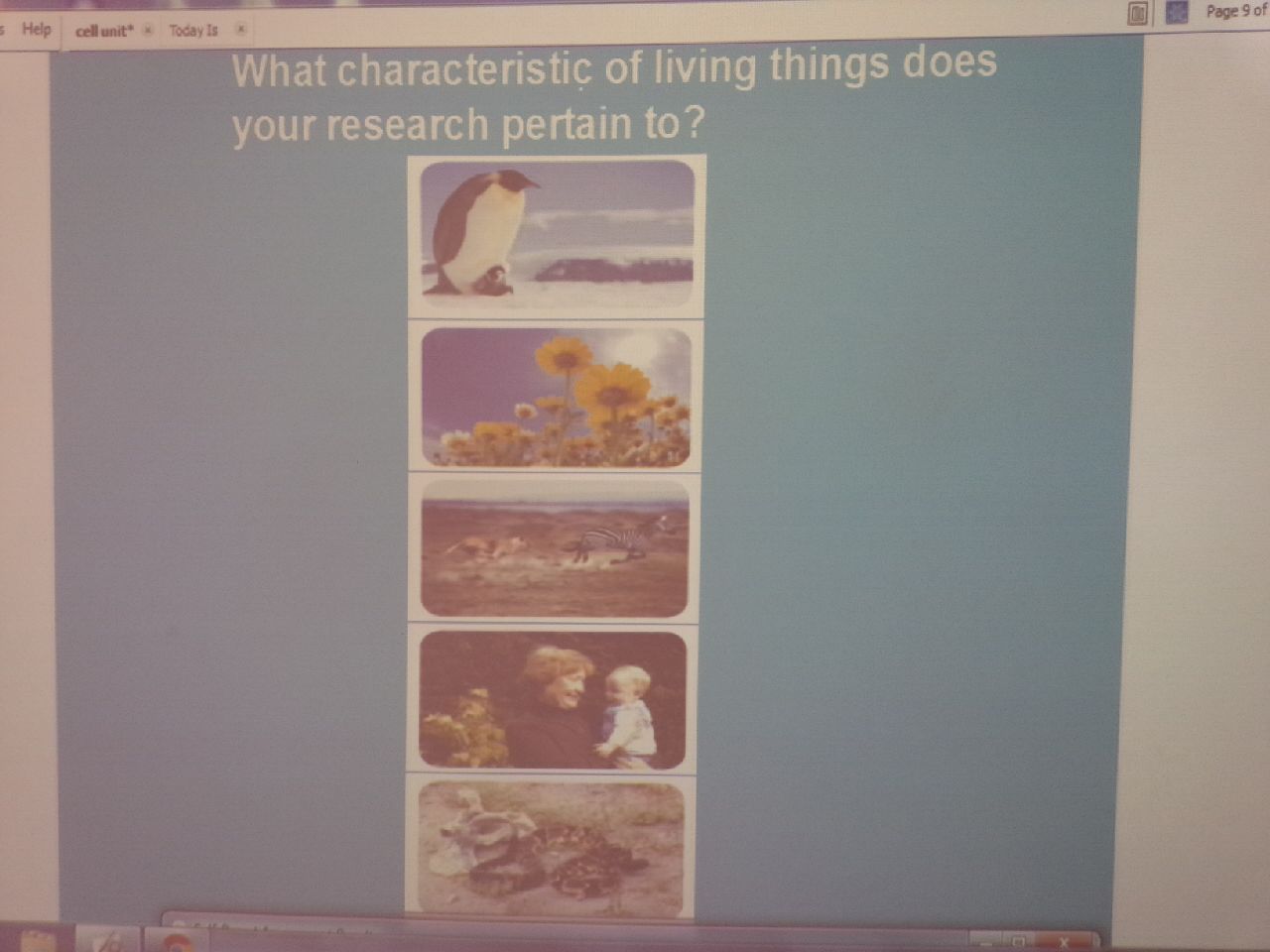
Students in Martha McGloin's grade 8 Gifted ISP at Queen Victoria Public School are currently doing an inquiry project in Science. Their focus in around the topic of Characteristics of Living Things and connecting in the Cell theory. Preliminary questions some have chosen for their investigations so far include, "What is the significance of single-celled organisms? How does DNA determine how cells develop and work? to "How can certain cells be used for the injury recovery or accelerated evolution of the human species?"

As part of her students' learning, Ms. McGloin wanted to make sure students were connecting fundamentals of the characteristics of living things and cell theory with their inquiries. McGloin co-planned a lesson with itinerant teacher Valia Reinsalu to incorporate the Activ Expressions in order to foster student discussion and connections.


Martha McGloin, from Queen Victoria P.S. starts the day's lesson.


Using the Express Poll, students were asked a variety of text questions which asked them to provide examples of various aspects of the characteristics of living things. Once students responded, Ms. McGloin was able to paste their written responses onto the flipchart page.


Students were also given a number of questions to reflect on using the self-paced assessment set-up. With the self-paced assessment the question appears on the ActivExpression device itself. Each individual goes through the set of questions at his/her own pace.


(left) Text answers can be "word-seeded" or pasted onto the flipchart page for sorting. The sorted ideas from: Give an example of "Living Things grow in size, reproduce and are able to repair themselves."

During the lesson, some students moved and sorted responses into specific categories by either walking up to the Interactive Whiteboard (IWB) and using their hand to move text around. Others students used the ActivSlate to move their responses from their seats.

Ms. McGloin leads the discussion. 

Students connect the characteristic of living things to the example given by proposing the name of the big idea. 

Ms. McGloin's class were also asked questions to relate their inquiry project directly to the big ideas of characteristics of living things. Students felt engaged and a few said they preferred the method of text input over having to "write ideas down" on paper.

Response systems are an effective way to have each student provide a voice and input into learning - particularly in a class of 21 or more students. It's also a great way to have generated ideas and examples be collected, sorted and stored in a visual way. A flipchart is digital and can be printed out and/or saved and referred back to a number of times on the IWB.

Friday, May 22, 2015

I have A.T. in my classroom, how do I use it for Math? project final LC summary

I Have Assistive Technology In My Classroom…How Do I Use It In Math?! – Wrap-up

Our Math and A.T. (Assistive Technology) project recently concluded with a “Bring and Brag” session where teachers had the opportunity to share their learning experiences with one another.  Teachers came together to discuss how they used assistive technology to help deepen their Special Educations students’ understanding of mathematics concepts as well as to support their students’ in more effectively communicating their mathematics reasoning.


Leonora Rochwerger from Donview Health and Wellness Academy sharing her lesson on constructing pie charts.
Irena Ivany from CR Marchant PS shares her lesson on symmetry. 

Teachers demonstrated a wide range of lessons and a variety of assistive technology tools. They also shared insights on how the use of these tools supported their students learning of mathematics. 
Terry Lwin from Clinton Street PS shares her lesson on percent concepts using Geometer’s Sketchpad.
Teachers also engaged in a professional dialog on how to continue to use assistive technology tools in their math programs as well as how to problem-solve when technical issues arise. In addition, all teachers that were part of the Learning Community left with a USB with all the math lessons on it so that they could continue their exploration of each other’s lessons on their own.

Overall, it was a great afternoon of learning for all our Special Education teachers involved in this project. Teachers were proud to share their learning and successes (as well as the occasional challenge that was encountered!). Check out our Facebook page to find a recent post showing a photo of all of our project teachers during our "Bring and Brag" sharing session: Facebook

If you are interested in this project or others by our department, be sure to check both DirectLine and our website regularly for updates as to when they become available.
Thank you again to all the amazing teachers who helped make this project the success that it was!


Friday, May 15, 2015

Using AT strategies to support Science learning at Secord P.S.

Future Scientists at Secord Elementary School!

Rebecca Clark at Secord Elementary School recently started a Science unit on living things.  Students in her class have been learning about parts of a plant, what plants need to grow, as well as planting bean seeds to track the growth cycle of a plant.


Itinerant Resource Teacher, Andrea Statton, met with Ms. Clark to co-plan and co-teach a Science lesson using some of the Promethean peripherals to engage her students and to have students demonstrate their understanding of plants in a variety of ways.

Students were excited to observe the changes in their bean seeds; using the sound recorder in ActivInspire with the ActivSound microphone, students shared how their seeds had changed.
Students then had the opportunity to place their seeds under the ActiView document camera so that everyone in the class could see the changes the student was describing..
This page was set up as a container activity in ActivInspire so that students would receive immediate feedback as they worked. If the students correctly labelled a part of a flower, they heard applause; if they were incorrect, the word bounced back.
Next, students were shown a time lapse YouTube video on growing bean seeds. Students were then asked what they learned from watching the video and Ms. Clark annotated their responses using the pen tool.


(left) Ms. Clark continued the lesson by asking students some Yes/No type questions; students demonstrated their understanding using ActivExpressions. (right) Finally, students documented their observations in their log book.

Tuesday, May 12, 2015

Using Response Systems "clickers" to have students actively engage in Math lessons - Alvin Curling P.S. & Highcastle P.S.

The Interactive Whiteboard Learning Communities for the 2014-2015 school year have concluded.

At the LC final session teachers received Active Response Systems (Activ Expressions or Activ Votes) which are devices that allow students to share their voice and thinking using remote devices. Also referred to as clickers, the response systems provide support for students who may not want to raise their hand or speak in front of the class when sharing their understanding. The response systems also provide quick and useful feedback to both the student and teacher about student understanding as results are available immediately.

In recent in-class sessions Itinerant teacher Valia Reinsalu worked with two LC teachers in two very different ways in using the Active Response systems. At Alvin Curling P.S., Sahaira Khan used the expressions with her students using the Express Poll or adhoc questions. While in Gary Stewart's junior/intermediate Behaviour Intensive Support Program, his class used the responses to answer a self-paced assessment. (Click on the images to see a larger version of the photo.)

Alvin Curling Public School, Sahaira Khan, HSP Primary


Ms. Khan uses the Express Poll's wonder wheel to choose the type of question her Primary Home School Program students will answer. (left) Sahaira Khan has pasted the results of the answer onto the question page. One of her students answered different (see graph bottom right corner of photo). She is able to address and students discuss their responses immediately. (right)

Express poll text response: A student in Ms. Khan's class types out a text answer to a question.
Highcastle Public School, Gary Stewart, J/I Behaviour

Self-paced assessment. Mr. Stewart's students use the images on this page to help them respond to the set of questions given to them. They are given: text, multiple choice, true or false, sort in order and confidence questions.


Using the Active Expressions by using the self-paced assessment feature, a teacher can "pre-program" a number of questions on the exact same page. Mr. Stewart built 12 questions on the same Polyhedra page. Student then receive the questions on their devices. Students can answer the questions at their own pace.
Self-paced assessment: The student in Mr. Stewart's class answers a question that appears on the ActivExpression device. She also has a copy of the assessment in paper to refer or do rough work on prior to sending her final response.

     
(left) The document view of a self-paced assessment. A number of questions are "pre-programmed" onto a flipchart page. The questions will appear on the student's device one at a time. (right) The document view. A teacher can print out the questions so student have a hard copy of the questions along with the questions appearing on the device.


Special Education teachers who received a SEA IWB attended four sessions at our training centres at Terraview Learning Centre (East) and Burnhamthorpe Adult Learning Centre (West) throughout the year. As part of the year-long support the six SEA itinerant teacher also provide job embedded professional learning sessions in the model of co-planning and co-teaching. The LC teachers look to try different ways to engage and teach their students by embedding assistive technology strategies and tools into their lessons.

Tuesday, April 28, 2015

Using ActivExpressions to Engage students - Cooperation lesson at Stanley P.S.

Using ActivExpressions to Engage Students

As part of the year-long support of Interactive Whiteboard Learning Communities, Home School Program special education teacher Catherine Watson at Stanley Public School recently completed a co-teaching experience with Itinerant Resource Teacher, Andrea Statton.  The lesson focused on the theme of cooperation.  Students had the opportunity to use ActivExpressions to respond to various questions on the Promethean interactive whiteboard. 


As the lesson progressed, students articulated their understanding of cooperation and voted if certain images and situations depicted cooperation. The students were then shown a YouTube video of Kid President’s “20 Things We Should Say More Often” (https://youtu.be/m5yCOSHeYn4) and the students were asked to make connections between what Kid President was suggesting and the idea of cooperation.

Next, students were asked to write their own phrase or statement that should be said more often to promote cooperation.  After some think time was given, students texted in their cooperation sayings using the ActivExpressions. 

Once all of the responses had been received, Ms. Watson used “Word Seed” to paste her student’s responses onto the ActivInspire flipchart page. 


Students then explained how their statement promotes cooperation. One student said, “Saying nothing is good sometimes so that you don’t say something mean.”

If you would like more information on Linking to YouTube videos in ActivInspire, check out our video:  https://youtu.be/9yv_hz78H8k

If you would like more information on Using the Fill Tool in ActivInspire, check out our video:  https://youtu.be/-KzM35KFYM0 

Thursday, April 16, 2015

I have AT in My Classroom - How Do I Use it in Math project spotlight: GSP at Scarborough Village Alternative School

As our project entitled “I Have Assistive Technology In My Classroom…How Do I Use It In Math?!”, continues teachers are finding new and exciting ways to use their assistive technology to deliver math curriculum in differentiated and engaging ways while also providing students with opportunities to use assistive technology to demonstrate their understanding of mathematics concepts.

Ms. Polidoro using her Promethean IWB to review vocabulary with her students.

 One of our most recent co-planning/co-teaching opportunities was with Cristina Polidoro from Scarborough Village PS. Cristina co-developed a lesson about angles to start her Geometry unit with her students. Using the Promethean Interactive Whiteboard, Cristina guided her students through a review of geometry vocabulary such as acute, obtuse, right, and straight angles as well as line segment, ray, and vertex. Ms. Polidoro used video clips to enhance and engage students as well as her ActivExpressions to allow all students to respond, thereby honouring each of their voices. Students also had several opportunities to come to the board to measure angles using the protractor tool and engage in discussion on what angles are.

A student in Ms. Polidoro’s class shows how to use a protractor to measure an angle.
In order to consolidate their learning, students then used Geometer’s Sketchpad to create several polygons. As part of their learning task, they were asked to measure each of the angles of their polygons as well as label what each type of angle was. 

An example of a student’s work using Geometer’s Sketchpad.

In subsequent lessons, Ms. Polidoro intends to have her students also use Read and Write Gold’s Vocabulary Builder tool in order to create a vocabulary list of geometry terms as a reference tool.

Friday, September 19, 2014

Coming Soon ~ Fall Key to Learn Sessions

The SEA Department is excited to again offer Assistive Technology software training for all TDSB Board employees. Make sure you watch for DirectLine postings or visit 
Key to Learn directly to find dates, times and locations for these sessions.


  Fall sessions being offered:
Microsoft OneNote
This hands-on workshop will explore the basic uses of Microsoft OneNote to support Intermediate and Secondary students. OneNote is an electronic version of a traditional 3 ringed binder in which students can tag, collect, organize and share their work electronically.
  Dragon Naturally Speaking Version 11 Dragon Naturally Speaking Version 11 Professional is a speech recognition software. In this hands-on workshop you will learn how to create a user (voice) file. Tips for training and improving your accuracy as well as importing and exporting user (voice) files will also be covered
  Read and Write Gold 11 Beginners Read and Write Gold is an all-in-one Assistive Technology program that is used in conjunction with another application. The hands on workshop will focus on the basic features needed to use Read and Write Gold. Participants will learn how to use various features to support their students in the following areas: Reading (text documents, scanned documents, internet and dictionaries, Writing: (word prediction, homonyms, self-editing and talking spell check) and Research (reading the internet)
  Read and Write Gold 11 Advanced Read and Write Gold is an all-in-one Assistive Technology program that is used in conjunction with another application. The hands on workshop will focus on using or expanding on additional features of Read and Write Gold not covered in the original session. Some of these features include the Speech Maker, Screen Masking, and Scanning.
  Smart Ideas – Concept Mapping This hands-on workshop will focus on the use of this concept mapping software. Smart Ideas can be used for a variety of purposes including mapping out new concepts or vocabulary, organizing a research project and planning written assignments.
  Promethean for Beginners This hands-on workshop will introduce users to the Promethean interactive whiteboard system and ActivInspire software. User will learn the basics of setting up their own flipcharts, where to find additional resources and how the system can become an integral part of everyday teaching.
   Promethean Next Steps This hands-on workshop will explore additional features of ActivInspire to enable users to create and customize their own flipcharts to meet the needs of their students.
  Promethean ActivExpression This hands-on workshop will support Promethean ActivExpression handheld devices using Promethean's ActivInspire software and ActivHub device. Participants will learn how to register and assign devices and how to use the express poll and question manager.
  Promethean Document Camera: ActiView This hands-on training session will focus on tools and options available when used with Promethean's ActivInspire software.
  Promethean ActivSound This hands-on workshop will introduce users to the Promethean ActivSound System that was part of some IWB SEA Claims. User will learn how to connect and use the sound system to support the curriculum in their classroom.

Wednesday, June 18, 2014

Supporting peer feedback using response systems: Spotlight on Heritage Park P.S.

In Mr. Watt's intermediate Learning Disability Intensive Support Program at Heritage Park P.S., students have used a number of strategies to provide peer feedback of presentations. Recently, during a co-teaching session with Itinerant teacher Valia Reinsalu, Mr. Watt and his students used the ActivExpression 2 learner response systems to provide comments and feedback to classmates' video game or game app presentations. The students reviewed a game by sharing power point oral presentations. 


James Watt models his own presentation for his students
 about the app "Plants vs. Zombies 2".
Mr. Watt presented to his class and students were able to provide feedback in a number of categories through the use of the ActivExpressions. The teacher and class co-created criteria about how to deliver an effective oral presentation and master the use of the interactive whiteboard to navigate a digital presentation. Feedback was provided via a pre-created list of questions known as a "self-paced assessment", where students can navigate and answer questions that appear on each ActivExpression screen at their own pace. 

Students can respond to different questions at their own pace on the ActiveExpression.
See photos (left) "was looking at the audience"  and (right) "talked loudly". 

Many different types of questions can be pre-programmed as self-paced tests. Mr. Watt used likert (rating scale), yes/no and texting question types for his students' introduction to the use of the ActivExpressions. Questions appear on the device screen. (Further individualized support can be provided for students by generating a paper printout of the question set.)

Even though students answered each question at their own pace, the class feedback results can be examined and shared when the entire assessment is finished. 
For each question there were two parts. First, students were asked to pick a level of performance for a specific category eg. confidence level of the presenter. Then they had to provide a brief rationale for their choice of rating. (photo) confidence level of presenter.


Friday, May 16, 2014

So you Inherited a Promethean Interactive Whiteboard, now what? Learning Community session review

Learning Community Session ~ Math and Differentiated Learning

Through a math 3-part sample lesson, teachers were shown various ways that the IWB could scaffold for students, along with provide a multitude of differentiated virtual manipulatives to support their learning. They also had a chance to explore the use of the Response Systems (ActiveExpressions) as a way to engage and motivate students, along with providing all students with an active voice.


 In the picture below, two teachers are sorting responses to an open-ended math question that were inputted by the participants using the texting feature of the ActiveExpressions.

Dual user feature promotes collaboration.
Teachers were then provided with work time to create their own 3-part math lesson, incorporating IWB tools and features. Below is a sample of one flipchart page created by one of the participants.


Wednesday, May 14, 2014

The Math Mission - Using probability language at Warren Park P.S.


The Math Mission in-class sessions continued at Warren Park Public School. Jeremy Nason hosted the second in-class session in his junior special education classroom. The Math Mission pilot is investigating how to use assistive technology to support students to clearly communicate their thinking in Mathematics learning. 

One of Mr. Nason`s goals for the morning`s probability lesson is to provide some differentiated learning opportunities using a variety of technology tools: Interactive whiteboard, tablet device, paper and pencil, during different parts of the three-part math lesson. Throughout the lesson, students were provided scaffolds to support student math talk using probability vocabulary such as likely, unlikely etc.

This Job-Embedded Professional Learning session began the morning with a pre-briefing (with discussion and sharing). Next the observer teachers watch the teacher and students work through the lesson. Finally, there is a debrief, with more sharing and discussion about how assistive technology helped to support student communication.

(left) Prebriefing the group puts the lesson into context, sharing past experiences. (right) In-class host Jeremy Nason shares how to set up the self-paced learner response system flipchart prior to the observation lesson.
For this lesson`s Minds On, students used the Learner Response Systems - ActivExpression to go through an anticipation guide through a self-paced set of questions. Students anxiety and engagement can be supported since they are able to complete the questions at their own pace.

A student uses the Activ Expression for a self-paced assessment. Questions appear on the ActivExpression device and can be printed out for student access.

The Action portion of the lesson, student were given an open question to create their own spinner or set of spinners. Students were able to solve the problem using a tablet device and paper and pencil.
(left) A student creates an ``impossible`` spinner (impossible to get blue) and records his thinking as a sound file using the ShowMe app. (right) Students create an equally probable spinner. One category is WBT (white bengal tiger). They show a teacher what the animal looks like using a tablet device. 
To support peer feedback and math talk, Mr. Nason provided the students with sticky notes `feedback starters`eg. Please explain why this works... I am not sure if this is correct because...``

Feedback starters for the Gallery walk can be provided both digitally and with paper and pencil.

Mira Campbell, Math Mission teacher from F.H. Miller, used her iPad to document the morning's in-class session. Take a look at this detailed look done in Evernote. 

Thanks to our Math Mission teachers for taking part in this exciting morning. The Math Mission`s final in-class session takes place later on this week. Stay tuned and check in with our blog to hear about that lesson!


Math Mission teacher group: Jeremy Nason, Warren Park PS, Alia Erlich, White Haven PS, Mira Campbell, FH.Miller P.S. and Nick Hanning, Nelson Mandela P.S..

Thursday, April 24, 2014

The Math Mission classroom visit at White Haven P.S.

The Math Mission Continues – First Classroom Visit

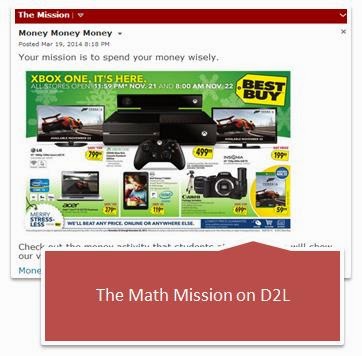
Participating teachers in the “Math Mission – Using AT to Support Communication in Mathematics” had the opportunity to visit Alia Erlich’s grade 6-8 HSP classroom to observe a math lesson about money.  Students got ready for the task by predicting whether an answer was reasonable or not reasonable and providing possible answers using the interactive whiteboard (IWB) and ActivExpressions.


Students were given an opportunity to go shopping and to spend their money wisely depending on the money in their account (provide by Ms. Erlich on a sticky note).  The open task allowed students multiple entry points and Ms Erlich was able to differentiate the task by determining the amount in each pairs’ account.  Throughout the “Math Mission”, students have been exposed to a variety of assistive technology tools to communicate their understanding in mathematics.  Students, again, had choice over the tools used.

Students shared their learning by using the IWB and ActivExpression to text in the math they did today.  The lesson and electronic files were shared with the participating teachers and students in the project on our Desire2Learn (D2L) Math Mission course.

Ms. Erlich commented that she has seen a great improvement in the students’ written communication in math.  She feels that it is attributed to the students’ recording their explanations orally, reviewing their recordings and listening to the recordings of others.  She is extremely excited by their progress.

Check out the blog in the upcoming weeks for an entry about our April visit at Warren Park Public School.

Thursday, June 20, 2013

Read and Write Gold project update and Tecumseh P.S. Behaviour ISP explores NoteBoard and more...

The A.T. team is winding down the 2012-2013 school year (and is beginning to plan exciting and engaging projects for the upcoming one). Among the projects that the Itinerant teacher team has wrapped up include the Read and Write Gold Assistive Technology pilot, Come back and swim with us - Mentor project, So, you inherited an interactive whiteboard, now what? as well as Learning Community groups.

Read and Write Gold Assistive Technology EQAO pilot finished
The second year of the A.T. team's Read and Write Gold EQAO project is finished.

Several schools across the TDSB have participated in our A.T. project to support students in Grade 3 and 6 Special Education classes to prepare for writing the Education Quality Accountability Office's province-wide exam. The project supported students and teachers in the use of Read and Write Gold tools when writing the Assistive Technology version of the EQAO test.

Using dual screens and Read and Write Gold word prediction tool.


Hillmount Public School grade 6 HSP class was one of the pilot participants. In the following sound files, a student explains how he is using Read and Write Gold during a practice session.

Multiple choice


Word prediction


Learning Community Job-Embedded Professional Learning in an Intermediate Behaviour ISP at Tecumseh P.S.

A number of teachers co-plan and co-teach with their LC itinerant teacher as part of the year-long professional development when incorporating the interactive whiteboard in their Special Education classroom. During a recent in-class session at Tecumseh P.S., Miriam Taylor's Intermediate Behaviour ISP class explored stating an opinion and creating an evidence-supported persuasive essay using assistive technology software and the Interactive Whiteboard to scaffold the entire writing process.

Should Hugging be allowed in schools?

Generating ideas
As a way to begin brainstorming ideas around the topic of hugging in schools, Ms. Taylor first used the ActivExpression Learner Response systems and Promethean's NoteBoard application. The Learner response systems allow students to anonymously text in an idea or word related to the topic.  The NoteBoard app links the texted responses to the central idea or topic as responses are entered through a process known as "word seed".
Ms. Taylor discusses the ideas generated on the Noteboard. Students use the learner responses to text in a word or idea.
 The Noteboard app automatically links their responses to the main topic of persuasive essay "Hugging".
The Learner Response systems provide a means for all students to contribute to class understanding. The technology also supports engagement and focus for all students as responses can be viewed almost instantaneously.

Stating an opinion
The lesson continued with Ms. Taylor and her team teaching partner Kenneth Kalisch, leading students through the lesson to define, describe and consider the topic of hugging using video, images and quotes. Students were encouraged to add their ideas and information to various pages such as the pros and cons of hugging , using text, handwriting and verbal responses (adding sound using the Sound Recorder). The group also viewed a video of a recent news story discussing a ban on hugging in an elementary school. All notes and student-generated ideas were saved on the flipchart and put on the student share drive.

By exploring the topic of hugging through a number of lenses,
students are able to form a position on whether or not hugging should be
allowed in schools along with supporting evidence.
Organization of ideas using SMART Ideas concept mapping software

The students were given a SMART Ideas template outlining the structure of a persuasive essay. Each student then began to add content to the template in the whole group setting using tools of the IWB. Both the flipchart and SMART Ideas organizer were then saved in the Tecumseh Student Share folder, so students could use them as a reference and continue to work on constructing their persuasive essay on individual computers.

Students could listen to the sound files and revisit the written ideas to use as supporting evidence for their persuasive essay. Visual learners can see the structure of their writing using shapes and colour in the "diagram view". Each section is editable. Students can add their written ideas in each specific area. Along with the diagram view, the program has  an outline view - showing all of the text of the concept map in an organized linear structure. Both the diagram and outline can be exported into Microsoft Word for further editing and revision.


Concept-mapping software such as SMART Ideas support students'
organization of ideas in writing such as those elements of a persuasive essay. This is the diagram view.
Ms. Taylor also ensured that her students' first draft and revision stages are also supported through the use of tools of Read and Write Gold.
One Tecumseh P.S. student's sample - all stages of the process in writing the persuasive essay "hugging should be allowed in schools."


post list