Showing posts with label Intermediate. Show all posts

Tuesday, June 9, 2015

OneNote intermediate project wrap-up example: J.S. Woodsworth Sr. P.S.

Students in Mr. DeFazio and Ms. Sharif’s classes at J.S. Woodsworth have recently completed their in-class sessions for learning how to use OneNote to support their organizational skills. Students in both classes have experienced tremendous success both in the use of their tablet computer and with using the OneNote software to support their learning activities.
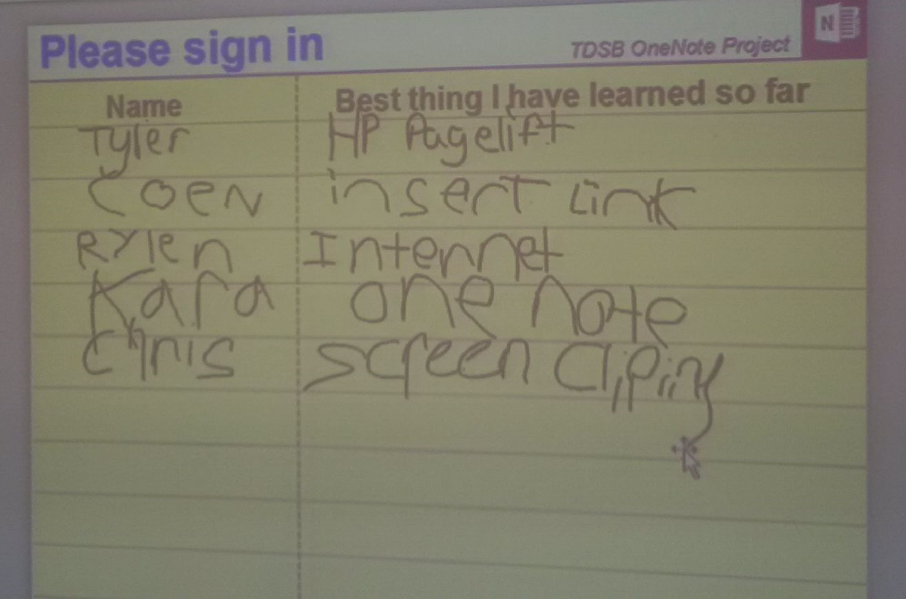


Some examples of what students shared as being their favourite thing that they learned through participating in this project.

Over the course of our visits in each classroom, students learned how to use a wide variety of tools that OneNote has available and made connections with how these tools can be used to support their ability to organize both their leaning tasks as well as their academic life.  For example, in our final session students learned how to create a table and how to use the “Snipping” tool to create a table with visuals.


Some examples of how students used the Table tool to organize information. Visuals were created using the “Snipping” tool.
Students then participated in a discussion on how tables are used to organize information and, why using visuals such as those created using the Snipping tool, help make the table even more useful (for example, one student commented: “Because a picture is worth a thousand words!”).

Overall, we had a great time working with the Intermediate students in Mr. DeFazio and Ms. Sharif’s class at JS Woodsworth this year. Thank you for participating in this project and we look forward to hearing all about how you continue to use your tablets and OneNote next year!


Tuesday, April 21, 2015

Using Geometer's Sketchpad to support student learning - Math & AT project spotlight: Lawrence Heights Middle School

At Lawrence Heights Middle School Home School Program teacher Anita Derubeis wanted to have her students actively explore and construct fractions in a number of ways to reinforce their understanding. So, as part of the "I have AT in my class, how do I use it for Math?" project, Derubeis and itinerant teacher Valia Reinsalu co-created a three-part Math lesson using Geometer's Sketchpad (GSP). It was the first time that Ms. Derubeis and her students would use GSP. However, the possibilities to scaffold learning through the use of digital tools and manipulatives and the use of hands-on tech was something Ms. Derubeis knew her HSP students would be up for the challenge.


Minds On
During a previous lesson, Ms Derubeis' class used an activity from the Ontario Education Resource Bank - interactive multimedia lesson about fractions: Pizza Pete. During the Minds On GSP lesson, concepts and vocabulary around improper fractions was reviewed using a screenshot of the OERB lesson as a visual reminder and springboard to discussion.

During Minds On, teacher can customize pages bringing in images and using GSP's text, shapes and drawing tools - in the same way they use an Interactive Whiteboard.

Also during the Minds On, students were introduced to the features and tools of GSP including the specific custom tool for the lesson: halves, thirds, fourths, fifths and sixths. In the photos below a student uses the thirds tool to create an improper fraction using the number line model. She used the text tool to properly label her drawing. The custom "thirds: tool supports fine motor and accuracy for the student who is able to easily and quickly represent her understanding in a visual way.


Action

Students were given a problem "Would you prefer to get 7/4 or  9/10 of a pizza?" and asked to use the GSP tools to share their thinking in a number of ways. They used GSP's segment straightedge, compass, text and marker tools to create drawings to demonstrate their thinking.


Ms. Derubeis' students are also part of the EQAO pilot project - using Read and Write Gold. During the Math lesson students used the word prediction and screen reader tools to support the clarity of their written answer.
Consolidation
To consolidate the lesson, Ms Derubeis had students share, compare and reflect on their responses. She addressed misconceptions and continued their work in the area of fractions.

One of the main goals of the Math & AT project is for teachers to develop and plan exciting ways to use their assistive technology to deliver math curriculum through differentiation and engagement. Lessons are designed to provide students with opportunities to use assistive technology to demonstrate their understanding of mathematics concepts. Thanks to Ms. Derubeis for a successful lesson using Geometer's Sketchpad. 

Ms. Derubeis (right) shares strategies and tools in GSP with observation Math & AT
project teachers Ms. Reiken (left) and Ms. Reid (middle).


Thursday, April 2, 2015

Supporting Math learning through AT & activity centres - Northlea E.M.S. spotlight Math & AT project

With such a wide variety of grade level and abilities in her Home School Program, Denise Reiken, who teaches the grade 2-8 HSP at Northlea Elementary and Middle School wanted to explore activity centres with her students as part of the "I've got Assistive Technology in my Classroom, How do I use it in Mathematics." Ms Reiken and itinerant teacher Valia Reinsalu went about planning a way for students to not only have hands-on experiences using technology to solidify their understanding of money concepts, but also to have a fun, practical way to meet all learners needs in the model of differentiated learning.


The class was able to share space with the Library Learning Commons. All three stations or activity centres were set up in designated spaces around the room. Students rotated through the three centres during the morning. Even though they were organized into multiple ability groupings, when they arrived at each centre, each student was given a task that met their readiness and comprehension level. The activities were so engaging that Ms Reiken's students were focused and on-task throughout the morning even though two other classrooms were in and out of the room,

Ms. Reiken stands by the tablet centre. The Adding or Trading Game and IWB were the two other centres which students rotated through during the morning of money value exploration.

The morning's lesson started off with a whole-group Minds-On using the SMART interactive whiteboard.
Students had the opportunity to review what they knew about the values of Canadian coins through the IWB activity.

Then students rotated through each centre spending time to explore their individualized web site or activity.

Tablet Centre
At the tablet centre students were connected to their specific link from the Ontario Education Resource Bank (OERB). The Ministry-licensed site provides multimedia activities which are curriculum links for student uses. (Each school board has student and staff passwords available for use.)
Since the tablets used by the students were touch capable, students went through the activities as if they had their individualized IWB.

Students used a variety of means to go through their specific OERB activity. 
IWB Centre (Northlea's Nutrition Nook)
At the interactive whiteboard students worked in pairs to build menus using digital manipulatives including digital coins and the pen tool to calculate the value of   specific orders.

Students work together to calculate the value of specific orders.
Games Centre
Students used coins, number cubes and game pieces along with addition skills to navigate around a game board.
Students play the Adding or Trading game using different game boards and manipulatives.
Ms. Reiken consolidated the lesson as the whole group gathered to discuss their favourite activity as well as what they had learned about money. To end the lesson, each student completed an exit slip to complete their morning's money exploration journey.


Wednesday, November 19, 2014

OneNote marker students update

Many of our students who were in grade eight last year and who are now in grade nine this year have continued to use their tablets and OneNote software to support their personal organization and academic lives in high school.  Students have recognized and embraced the useful features of OneNote to help them create Notebooks to organize themselves for all the subjects they are taking. Students are also continuing to colour code subject tabs to help them organize themselves. Below is an example of one grade nine student who has developed enough independence with using the tablet and software in order to organize himself for success in grade nine:

Students report they are enjoying having the ability to access the internet to do research in order to deepen their understanding of concepts being taught in their classes. Students also report they appreciate having the option to type notes, use the sound recorder to record parts of lessons, or using HP LiftApp to import pictures into OneNote taken with their tablet. Below is an example of how a student has used OneNote to take notes in Science:


In another school, one student created his own self-regulation strategy to help the student refocus energy during times of the day. The student created a section of pages to draw on when the student is feeling angry or anxious.


Overall, many of our former grade eight students are enjoying having a tablet to support their learning and their organization in high school. And, thanks to the feedback and advice they continue to provide us with, we continue to use this information to further improve our project!

Thursday, September 4, 2014

Back to School with the SEA Team and OneNote

OneNote project cohort complete transition into high school using tablets


This September, our first cohort of grade 8 students who have participated in our OneNote Pilot Project in the 2013-2014 school year will be entering secondary school. This particular group of students were among the very first to receive a SEA Windows 8 tablet device and receive training on using OneNote software to support personal organization, independence and ultimately the transition to high school.

A student uses his touch tablet, accessing information in many ways including sound or multimedia files.
This week, our Assistive Technology Itinerant Resource Teachers have been hard at work visiting the high schools who are welcoming our OneNote students. During our visits, our Itinerant Resource Teachers are meeting with staff and the participating student to:

  • Deliver/return the student’s tablet device
  • Review storage and charging procedures
  • Inform teachers and students of ways they can access technical support
  • Supporting students in sharing how their tablet device has transformed the way they can organize their notes and access curriculum in high school

Our visits have been met with excitement, enthusiasm and a commitment to student achievement.

We look forward to beginning our work in grades 7/8 HSP and ISP classrooms in the 2014-2015 school year in order to begin supporting their transition to secondary school through the use of OneNote software and a SEA tablet device.

Stay tuned to DirectLine for more information on the proposal process and getting your intermediate special education class involved!

Friday, June 20, 2014

Supporting student transitions into Secondary - OneNote project Info session for Special Education high school teachers

Preparing for the “Big T” with OneNote:
OneNote Secondary Teacher Information Session


On Thursday June 12th2014, Assistive Technology Itinerant Resource Teachers, Renee Keberer and Christina Mathura facilitated an important OneNote Information Session for secondary special education teachers. This group of curriculum leaders and assistant curriculum leaders of special education were specifically invited to attend this session. These teachers represent the high schools who will be receiving our first round of students transitioning to grade 9 in September, having received OneNote training with a SEA tablet device. 

ACL of Special Education, Krista Petersen shares how the SEA tablet devices are charged and securely stored in her classroom at Lawrence Park C.I.

At this information session, secondary teachers were;

  • Introduced to the intermediate pilot project and its goals of supporting personal organization and independence through the use of OneNote
  • Presented with ideas of the ways in which OneNote and the tablet devices are being supported in secondary GLE classes at Lawrence Park Collegiate, by ACL of Special Education, Krista Petersen
  • Provided with the opportunity to plan for the storage and support of the tablet devices and OneNote software throughout subject classes and GLE in grade 9

This information session enabled teachers to begin planning for the transition of incoming grade 9 students from the OneNote Pilot Project, entering high school in September 2014. 

Secondary teachers collaborated with colleagues to discuss and complete an individual “Entry Plan” Activity in order to begin thinking about how students will access their devices and how OneNote software will be supported in subject classes.

Monday, May 26, 2014

Using OneNote in cross-curricular contexts - Geography example from Birch Cliff Public School

One of the key goals of the A.T. team's OneNote pilot in classrooms throughout the TDSB is to support the organization skills and transitions of intermediate students. Through the project-based learning, students are learning the tools and skills to use OneNote for a research project to create a digital poster "My Favourite..." The success and engagement in using the tools translates to other subject areas at many schools. At Birch Cliff Public School, students in the intermediate ASD program, use their tablets throughout the day in all learning contexts.

Their teacher, Laura Butler, chose one of her student's Geography assignments to share as a demonstration of the possibilities of student achievement from her classroom.


(left) The Population Factor goals and success criteria for the Geography session. (right) the SQ3R non-fiction
reading strategy with Read and Write Gold tools embedded.


"This work sample was produced by a student who independently used the SQ3R strategy visual, Read and Write text-to-speech, and OneNote's question tags and tag finder, and drawing tools to read and take notes on his geography reading," said Ms. Butler. "As the student previewed the text, he created question tags to answer later as he read the text. He collected the tags and made a summary page of them, where he then made his notes from the reading."
After capturing a page of the textbook
using HP Page lift, the student highlights
key facts and adds question tags.

The student added tags on a number of his pages. He then used
the OneNote feature "Collect tags" to create a page summary of all of
his questions - with answers from the text. 

"So far, the student has been reluctant to use his tablet, and he generally has a hard time focusing, working independently, and completing tasks. However, the student remained focused for the entire period, worked with total independence, and after completing the task reported that using the tablet had made his work much easier! Success!"

Friday, May 23, 2014

Personal organization and independence: OneNote pilot project in Secondary summary

What are tools that secondary students prefer?

The Assistive Technology team’s OneNote Pilot Project focuses upon personal organization and independence in order to support the “Big T” transition from grade 8 to high school. This initiative aims to provide explicit training of OneNote software, with a distinct focus on the ways in which the tools/features of OneNote can be used in classroom settings to support student learning - from the intermediate grades, into high school and beyond.
During our final in-class training session, students are encouraged to create a personal list of the “Top 5 OneNote Tools” that will enable them to be their most independent and successful in their integrated classes.


Here is a list of the tools/features our students love the most:


Student can use their finger or a stylus to write, draw or highlight their notes directly in OneNote.


With OneNote, our students love that they never have to save their work and fear losing their content. Everything is automatically saved – alleviating student stress and anxiety.


Do your thoughts ever flow faster than you can write, or even type? For the students we support, the Record Audio tool enables students to record their thinking, instructions from their teacher and even reminders of what to study for an upcoming quiz!


Screen Clipping allows students to quickly and easily capture images/content from the internet and place it directly into OneNote. This tool supports researching and accessing content. The best part is that it also includes bibliographic information to source the website the specific information clipped from!


Our #1 voted tool that serves as the biggest “game-changer” for our students is the HP Page Lift App. This tool allows students to make handouts, textbook pages, and even the chalkboard digital by taking a picture of hardcopy resources and sending them directly to OneNote. These images can be placed in the appropriate section of a student’s notebook and can be annotated on. Students love never having to worry about losing a worksheet again!  

By mastering the use of these OneNote tools and features, the students who have participated in this pilot have reported increased academic success, self-confidence and happiness. With these skills – our students will be transitioning to high school with the necessary skills and tools to be their most successful in high school.


Monday, May 19, 2014

OneNote pilot project summary Tecumseh P.S.

OneNote comes to an end at Tecumseh, but the learning continues…

Tecumseh Senior Public School had its last OneNote in-class session. The students have become extremely proficient with using the program and their tablets and use them in all aspects of their schooling. Below, the students reflect on how the Microsoft OneNote software helps support their learning. 
Students sign in by indicating the best thing they have learned in the OneNote Pilot.

Keon and D’Angelo are busy recording their Community Clips video where they discuss their favourite OneNote feature.


                     Keon and Stacey discuss their favourite OneNote feature.


D’Angelo takes us through a tour of his OneNote binder.


Tecumseh’s top 8 list of things they learned through the OneNote Pilot.

.
Some of the Tecumseh staff and students (from left to right, Ms. Taylor, D’Angelo, Keon, Mr. Christie, Stacey).


Wednesday, May 7, 2014

Second phase of OneNote pilot project teachers share at Learning Community

It was a full house at Burnhamthorpe Adult Learning Centre last week for the intermediate pilot project Learning Community gathering. Special education teachers from East and West schools across the TDSB are at the mid-way point for their classroom phase of the Assistive Technology team's OneNote project.

Teachers shared ways that the OneNote pilot has been successful in their classrooms.

Teachers shared, ranked and inquired about how the OneNote software and the tablet is supporting their students in organization and transitions. During the session teachers had the opportunity to work with their peers in various groupings. Here are a few photos taken during the afternoon.


(left) Coming up with their top-10 tools  of OneNote which supports student learning (right) Discussing organizational strategies embedded in OneNote and the tablet..

The entire teacher group's top tools list (more than 10) and it could have been a longer list!
One group's top 10 list created in OneNote.


Wednesday, April 2, 2014

OneNote pilot project - Blantyre P.S. Intermediate students' complete in-class pilot sessions

The intermediate students in Wendy Klayman's class weren't fooling around the morning of April 1st. The Home School Program (HSP) group finished their last session of the OneNote pilot project. During the session, they explored simple ways to support Math computations using OneNote and reviewed tools and applications used during the project. The class also reflected on ways the tablet and OneNote has changed and/or supported their learning and organization for day-to-day school work.

"My HSP grade 7 students have learned so much with OneNote. Overall, it has improved their organizational skills. They have created tabs for every subject and use the tabs like a binder.  They use Pagelift for “capturing” assignments and homework and they are using the templates and screen clippings for research assignments. Most importantly they are seen as “cool” and other students want to work with them in their classrooms. It has improved their confidence and put them on a level playing field. All of them feel like they couldn’t work without their OneNote". -Ms. Klayman

Blantyre P.S. intermediate pilot students and their top 10 features of OneNote (in no particular order).
Sarah uses  the HP Liftapp to capture her reflection questions.

Students access the tablet in different ways: mouse, stylus and touch screen.
(left) Using HP Pagelift to crop a captured document. (right) Writing a reflection about OneNote and the tablet.

Thank you to Ms. Klayman and her students for a fun and successful pilot project!

post list