Showing posts with label OneNote. Show all posts

Friday, June 26, 2015

Year end reflection & See you in 2015-2016 school year from the SEA team!

As the school year winds down, the SEA Team would like to take this opportunity to thank all of the wonderful and amazing teachers who have worked with us this year and who have strived to better understand how they can use assistive technology to improve their students’ learning outcomes. We all know that using technology isn’t always easy!  Nonetheless, the teachers we have worked with this year have persevered and succeeded in embedding the use of assistive technology into their daily practice. Whether it was using ActivInspire with a Promethean Interactive Whiteboard to differentiate instruction and increase student engagement, or learning how to use Microsoft OneNote to support students’ organization skills, or Geometer’s Sketchpad to help students find new ways to communicate their mathematics reasoning, teachers trusted us to help them and their students and were successful beyond our expectations. Below are a few samples of some of the feedback comments we received:

Interactive Whiteboard Learning Community


Q: Which experiences were most beneficial to you in your Learning Community?

 “The Professional Development Learning Community sessions were informative and provided me with lessons and ideas that I used with success in my classroom immediately following the PD sessions.”

“To my surprise, the Co-planning/Co-teaching time with the Itinerant Teacher was the most beneficial because I had the opportunity to see some of my teaching ideas come to life on the Promethean. Not only did I get to try out some of the newly taught functions on the Promethean Board, I also had a chance to build and trouble shoot ideas one to one with an experienced Promethean Board teacher and user. It was also great to see how individualized a lesson or activity could become just by knowing what functions to activate or deactivate when students were participating in a lesson.”

Q: What advice would you give to a Learning Community Member who will be part of our Learning Communities next year?

“Attempt to use the devices given and try to implement them as much as possible into your lessons. The students loved using the new interactive technologies.”

"After each session go back to your school and try it out immediately, this way you don't have the chance to forget what you learned -embrace this opportunity and be prepared to learn a lot.”

OneNote for Organization Project (student responses)


Q: During lessons, I made an effort to persevere with work I found challenging.

“I would take a picture of it, send it to my binder and have Read and Write Gold 11 [RWG11] read it to me.”
”I sometimes have a hard time remembering things, so I use the record sound tool, so I could go back and listen.”

I Have Assistive Technology In My Classroom…How Do I Use It In Math? Project


Q: To what extent do you feel using assistive technology helped deepen your students' understanding of the math concept(s) that were taught?

“Kids are more willing to collaborate and help one another to understand concepts. It provides more opportunity to offer differentiated instruction. Can cover more concepts…less time on paper/pencil tasks. Can quickly evaluate if individual students have learned concepts for programming purposes.”

“My students really enjoyed our lesson using GSP [Geometer’s Sketchpad]. They were extremely motivated and engaged!!”

Q: Thinking back to your personal goals for wishing to be a part of this project, to what extent do you feel you were able to meet those goals?

“I met all of my goals because my wish was to become more comfortable with other programs/technology available, and pass that comfort and understanding along to my students. That happened, especially with GSP [Geometer’s Sketchpad].”

We also received some excellent constructive feedback on how we may improve upon the Professional Development opportunities our team offers and are already working hard planning for next year with many of those suggestions and ideas in mind.

In conclusion, we want to wish all of you a safe, happy, restful summer. Please don’t forget to make a regular habit of checking DirectLine and Key-to-Learn each week for news regarding our Professional Development opportunities. 

We look forward to working with our Special Education teacher colleagues again in 2015-16!

Tuesday, June 23, 2015

Summary of our OneNote tablet project for organization and transitions - successes

OneNote Successes

Teachers that participated in the OneNote Project for the 2014-2015 school year came together to share their experiences, successes and strategies. Many student success stories were shared with the group; along with the OneNote strategies/tools they found the most beneficial for their students. 


Teachers identified many strategies and tools that helped support their students. The top ones that were suggested by many participants were:
  •      HP PageLift which allows students to take a picture of worksheets or teacher notes on a blackboard/Interactive Whiteboard or anchor chart, insert them into their OneNote binder and then annotate on top of them
  •      Screen Clipping which allows students to take a snapshot of text or images from websites and insert that information into their OneNote binder, complete with the URL link and date/time stamp.
  •      Draw Tools which allow students to highlight information (whether digital or images)
  •       Tabs to allow students to organize their work into subject specific sections
  •       Paper options so that students could use graph or lined paper in their OneNote
  •       Tags so that student can identify important information, to dos, or questions to ask

     Teachers also provided some feedback on how they have supported or could support their student’s transition to grade 9. 

      Some of the ideas were: 
  •       creating a grade 9 binder with students prior to the end of the school year
  •       visiting the student’s high school to take pictures of the school map/schedule to place in their OneNote binder
  •       reminding students about the training videos within their Training and Resource Tab that review various OneNote tools
  •       providing information about the OneNote project to high school teachers; and review/teach self-advocacy skills

The participants also provided valuable feedback on behalf of their students. They expressed that daily/regular use of their tablet and OneNote software, the in-class sessions provided by the Itinerant Resource Teachers with SEA Team, and the auto save feature were some of the reasons that their students were able to comfortably use this technology independently.


Teachers felt that their student’s anxiety was reduced and their engagement improved through the organizational aspects and ease-of-use OneNote software. They commented on improved attendance, increased confidence and independence, and a positive sense of ownership and pride in their students.

As well, teachers shared how their student’s achievement improved by participating in the OneNote Project. They noted how their reading and writing improved through using Read and Write Gold in conjunction with OneNote. They also mentioned how their students were now more digitally literate and much more able to keep themselves organized. They were reviewing and revising their own work independently, without reminders, and stated that how through increased engagement and participation their behaviour improved. 


Lastly, the teachers believed their students were better prepared for high school as a result of becoming digital learners, being better able to organize, themselves, improved self-advocacy, and increased confidence.


Tuesday, June 9, 2015

OneNote intermediate project wrap-up example: J.S. Woodsworth Sr. P.S.

Students in Mr. DeFazio and Ms. Sharif’s classes at J.S. Woodsworth have recently completed their in-class sessions for learning how to use OneNote to support their organizational skills. Students in both classes have experienced tremendous success both in the use of their tablet computer and with using the OneNote software to support their learning activities.


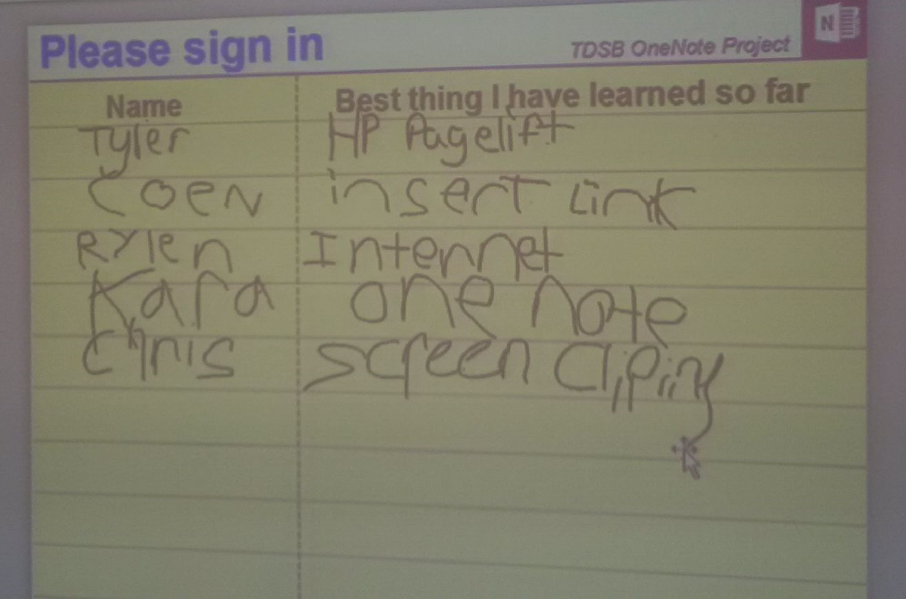
Some examples of what students shared as being their favourite thing that they learned through participating in this project.

Over the course of our visits in each classroom, students learned how to use a wide variety of tools that OneNote has available and made connections with how these tools can be used to support their ability to organize both their leaning tasks as well as their academic life.  For example, in our final session students learned how to create a table and how to use the “Snipping” tool to create a table with visuals.


Some examples of how students used the Table tool to organize information. Visuals were created using the “Snipping” tool.
Students then participated in a discussion on how tables are used to organize information and, why using visuals such as those created using the Snipping tool, help make the table even more useful (for example, one student commented: “Because a picture is worth a thousand words!”).

Overall, we had a great time working with the Intermediate students in Mr. DeFazio and Ms. Sharif’s class at JS Woodsworth this year. Thank you for participating in this project and we look forward to hearing all about how you continue to use your tablets and OneNote next year!


Monday, May 4, 2015

OneNote and HP PageLift app help Earl Grey P.S. students organize and learn

Students in Ms. Jo Miller's HSP class are part of this year's phase 2 OneNote project.After only a few sessions of using their new tablets and Microsoft OneNote software, Ms Miller's class already use their devices in a variety of subject areas including English as well as their integrated Science class.


Ms Miller's students used HP PageLift to capture a Global Warming film viewing log (left) and teacher's notes (right) to help support their Science program.

The HP PageLift app allows students to digitize any document or resource like an Interactive Whiteboard, chart paper, poster, handout or textbook page for use in OneNote so they can type, draw and fill out information. 

Here one of Ms Miller's student demonstrates how easy it is to use the HP PageLift app.

Step 1 Take the photo


The student has a non-fiction book ready to be digitized. He opens the HP PageLift app on his device and takes a photo.

Step 2  Crop the photo


In the HP PageLift app the photo is cropped and then sent to OneNote.

Step 3 Place the image onto the correct section on OneNote.


The student is asked to select the section of his OneNote notebook where the image is captured.
Step 4 Ready to highlight, annotate the digitized document.

The student can use a stylus, touch screen, mouse and keyboard while in OneNote.
Also check one our Tech & Special Ed YouTube channel videos like the one we have on HP PageLift to see other strategies and tools we use in OneNote.


Tuesday, March 24, 2015

Math & AT project: Using OneNote to support student communication of ideas - spotlight Scarborough Village A.S.


Students in Miriam Taylor's Home School Program at Scarborough Village Alternative School had a wide variety of opportunities to use technology to explore the concept of equivalent fractions during a recent co-teaching session. As part of the "I have Assistive Technology in the classroom, how do I use it for Math?" project. Ms Taylor and itinerant teacher Valia Reinsalu created a lesson which incorporated different software to support the students' learning styles and ability to communicate their understanding and thinking.

Minds On: Promethean Interactive Whiteboard flipchart

To start off the lesson, students revisited their understanding of identifying and naming fractions.

Ms Taylor during the Minds On portion of the lesson students used simple IWB tools to share their knowledge.

In one example students use the pen tool to complete the whole and name the fractional parts or divide a whole into fractional parts.

Action: OneNote
Scarborough Village is part of the AT team`s C.A.R.T. project this year (Curriculum and Resource Technology) so it`s a natural fit to get the laptops into the students` hands during the action portion of the lesson. Students picked up separate Microsoft OneNote page files from the school`s student shared folder and worked on the problems using OneNote tools as well as hands-on manipulatives.


Scarborough Village students represent fractions using various draw tools in OneNote.


Students in the triad use fraction circle manipulatives and computer to explore a problem about equivalent fractions (left). Without prompting one student quickly creates a vocabulary word list using Read and Write Gold to confirm his understanding of the word equivalent (right).

Consolidation: IWB and OneNote
As part of explaining their thinking, groups could choose to use the record video portion to orally explain and show why the two fractions represented were equivalent. Once all groups are finished Ms. Taylor will show each group's solution and play their embedded video from OneNote on the IWB. Students will have a chance to reflect and discuss answers for clarity and accuracy.

A OneNote solutions page. This group of students have responded to why the two fractions are equivalent by including an embedded video where they orally explain their answer.


Tuesday, February 10, 2015

AT Tools to try in 2015 - OneNote

Tools to try in 2015: Microsoft OneNote:

Tool: Record Audio
Why: Students can use “record audio” to quickly record their thinking, a reminder or an important piece of information directly into their notes
Favourite Use: I love seeing students ask their subject teachers if they can record audio of them assigning the homework…often times this can be quicker than typing or hand writing it into a student’s agenda…quick and easy! Students can then access the note when as a reminder of what needs to be completed and when it is due.


Tool: Tags
Why: Students can use tags to flag important information (e.g., key points for a test), questions for their teachers, create “to do” lists  for projects and homework tasks. Once tags have been created, students can search for the tags in any of their OneNote sections and the tags can be collected to create a summary page.
Favourite Use: Making a “to do” list and enjoying the satisfaction of checking off the little boxes!


Tool: Screen Clipping
Why: Students can bring in content from web resources and other digital documents into their OneNote notebook page. When using screen clipping in conjunction with Internet Explorer, a static image of the text, diagrams and/or images can be defined an captured along with accompanying information such as time and date of access and the source web address (URL). Screen clipping is particularly useful in cases where the information on the page may change or the web site is difficult to find again.
Favourite Use: Doing a research project, identifying and organizing key information from a web resource/ web page resource (see photo). Not only are the text and images captured with the bibliographic information. Key facts or parts of the screen clipping can be highlighted, arrows, audio notes and tags can be added to the overall text to support the student's better overall understanding.


In this image the student has created a screen clipping. Then, the student has highlighted portions of the page. The student added an arrow to indicate the web address that was generated from the screen clipping creation and tagged the information as "important". There is also a sound file on this page - indicated by a white set of head phones on red background.

Tuesday, February 3, 2015

OneNote pilot project spotlight: G.A. Brown M.S.


A number of our intermediate special education classrooms have joined our OneNote pilot project over the past month. The project supports intermediate students to learn how to use a tablet device and software Microsoft OneNote to support their organization skills.

Last week, Ms. Le's Home School Program class had their third of four sessions at G.A. Brown Middle School. During this session students learned how to compile research information from the internet by using tools such as OneNote's screen clipping and tag tools.
Ms. Le and a few of her students explore the various of tools on the tablet.

Students can access research content from the internet using a keyboard, mouse, stylus or finger with the touch supported device. In this photo, the student prefers to use the tablet out of it's built-in keyboard case, and takes screen clipping of images and text using her finger.


After bringing in an image and text from the internet, a student experiments with using tags to highlight key information as well as questions.

During the four-session pilot, students learn how to navigate their tablet devices, use tools in OneNote and other apps found on the tablets in ways that will support their learning and organization.One useful app is HP Pagelift - which allows students to make any written text or image digital.


(left) A student uses the camera tool in HP Pagelift to capture an image from a magazine. (right) HP Pagelift allows to student to use the image in OneNote as part of her project.

To keep up with a few other schools which are taking part in our pilot don't forget to follow the Assistive Technology team's OneNote & TDSB Assistive Tech Facebook page at: 


For more information about the various OneNote tools that students are using during the project, go to our Tech and Special Ed Youtube channel to see some of our videos:


Friday, January 9, 2015

Infographic: OneNote pilot project student profile

Here's an infographic created based on what students have been telling us about their work habits and tools that they use.


Friday, December 19, 2014

Spotlight Blantyre P.S. OneNote pilot project

As the 2014 part to the school year comes to a close, the students in Ms. Klayman's class at Blantyre Public School are just getting started with OneNote. As part of the AT team's pilot project, the students created their digital binders and had a chance to explore the many helpful tools available to them to organize their daily school work.

In their first session, the Blantyre students became comfortable working with and navigating their new tablet devices. Since their first session, they reported using programmes such as Microsoft Word, Microsoft Powerpoint, and Read and Write Gold as part of their school work completion. Students also used internet websites available on the tablet such as Google Earth and linked to their homeroom classroom teacher's web-based sites such as bitstripsforschools or Edmodo to contribute to class work.
A Blantyre student shows his homeroom classroom's class profile on bitstripsforschools which he uses to complete his Media work. (left) A student swipes to navigate between different programs and apps on the device. (left)
During the past week's session,  students set up their OneNote notebooks and tried different ways to organize information within their new digital binder's pages. Ms Klayman's class used tools such as Screen Clipping and tags.

Tagging helps students to organize ideas, process and questions. This Blantyre student did a screen clipping from a web site. He tagged parts of the captured web page within OneNote then created a tag summary page. (right)
Ms Klayman's class also used the app HP Pagelift to make non-digital work digital withing OneNote. After bringing a reading assignment into their OneNote binder, they brainstormed ways they might be able to use this tool daily:
  • If you get a paper you have a backup..
  • Take a picture of your textbook so not to have it so heavy in your backpack.
  • Help me put my homework or notes into OneNote…
  • Art – can edit my art digitally..make it virtual
  • History – take a picture of notes
  • (chart paper) charts for Math 
A Blantyre student captures a handout about Brain functions using HP Pagelift.
(left) Capturing the page. (right) Editing and cropping the digital image. 
The group of Blantyre students brainstormed five ways that the OneNote can help them to organize their school work. 
When they are back in January, these students will only improve and individualize the way they use the tools and the tablet to support their learning and academic achievement.


Tuesday, December 16, 2014

Spotlight: OneNote at G.A. Brown M.S. - one of many TDSB classrooms participating in the intermediate AT project

Our Assistive Technology OneNote intermediate pilot project is underway. Many intermediate classrooms in schools across the TDSB are learning ways to use tools in OneNote to organize themselves and keep a personal digital binder. Classes such as Ms. Le's Intermediate HSP classroom at G.A. Brown Middle School is half-way through the project.

A G.A. Brown student models how to create a new OneNote notebook in her H: drive using the Interactive Whiteboard.
In all four sessions the classroom teacher, an itinerant teacher and the students work together to support the students use of the device in supporting their organization and independence. (Each of our six itinerant teachers are attached to classrooms based on the school's geographical region.)

In the first session, students receive their tablet devices and become proficient in navigating the Windows 8.1 environment of both apps and desktop applications. In the second session students create their OneNote binders - the basis on which they create their personal digital binder.
Creating a sub-page during research of My Favourites project.
Ms. Le and students collaborate and learn together during session 2 of the OneNote project.
Throughout the pilot students how to use the various OneNote tools such as Colour coded tabs, Screen Clipping, tags, using Drawing tools as well as tablet apps such as HP Pagelift as they research and complete work on a "My Favourites" project.
Using HP Pagelift app on devices to make paper work digital.
Send to OneNote: A student sends the captured file - Project Outline of the My Favourite project - to her OneNote notebook.
For a reminder on how to use the HP Pagelift app, here's one of a number of the AT team's Youtube videos involving the OneNote project: http://bit.ly/139g9bN.

They use tablet tools and OneNote is not limited to the My Favourites project. Students find ways to use HP Pagelift throughout their day. G.A. Brown students in Ms. Le's class have found many ways to use tablet tools from taking notes in Music class to doing research and compiling bibliographies in History projects with themes such as: Gold in the Yukon.

OneNote pilot project phase two continues in 2015. Phase 2 also gets underway in the new year.


Wednesday, November 19, 2014

OneNote marker students update

Many of our students who were in grade eight last year and who are now in grade nine this year have continued to use their tablets and OneNote software to support their personal organization and academic lives in high school.  Students have recognized and embraced the useful features of OneNote to help them create Notebooks to organize themselves for all the subjects they are taking. Students are also continuing to colour code subject tabs to help them organize themselves. Below is an example of one grade nine student who has developed enough independence with using the tablet and software in order to organize himself for success in grade nine:

Students report they are enjoying having the ability to access the internet to do research in order to deepen their understanding of concepts being taught in their classes. Students also report they appreciate having the option to type notes, use the sound recorder to record parts of lessons, or using HP LiftApp to import pictures into OneNote taken with their tablet. Below is an example of how a student has used OneNote to take notes in Science:


In another school, one student created his own self-regulation strategy to help the student refocus energy during times of the day. The student created a section of pages to draw on when the student is feeling angry or anxious.


Overall, many of our former grade eight students are enjoying having a tablet to support their learning and their organization in high school. And, thanks to the feedback and advice they continue to provide us with, we continue to use this information to further improve our project!

post list