Showing posts with label project summary. Show all posts

Tuesday, June 23, 2015

Summary of our OneNote tablet project for organization and transitions - successes

OneNote Successes

Teachers that participated in the OneNote Project for the 2014-2015 school year came together to share their experiences, successes and strategies. Many student success stories were shared with the group; along with the OneNote strategies/tools they found the most beneficial for their students. 


Teachers identified many strategies and tools that helped support their students. The top ones that were suggested by many participants were:
  •      HP PageLift which allows students to take a picture of worksheets or teacher notes on a blackboard/Interactive Whiteboard or anchor chart, insert them into their OneNote binder and then annotate on top of them
  •      Screen Clipping which allows students to take a snapshot of text or images from websites and insert that information into their OneNote binder, complete with the URL link and date/time stamp.
  •      Draw Tools which allow students to highlight information (whether digital or images)
  •       Tabs to allow students to organize their work into subject specific sections
  •       Paper options so that students could use graph or lined paper in their OneNote
  •       Tags so that student can identify important information, to dos, or questions to ask

     Teachers also provided some feedback on how they have supported or could support their student’s transition to grade 9. 

      Some of the ideas were: 
  •       creating a grade 9 binder with students prior to the end of the school year
  •       visiting the student’s high school to take pictures of the school map/schedule to place in their OneNote binder
  •       reminding students about the training videos within their Training and Resource Tab that review various OneNote tools
  •       providing information about the OneNote project to high school teachers; and review/teach self-advocacy skills

The participants also provided valuable feedback on behalf of their students. They expressed that daily/regular use of their tablet and OneNote software, the in-class sessions provided by the Itinerant Resource Teachers with SEA Team, and the auto save feature were some of the reasons that their students were able to comfortably use this technology independently.


Teachers felt that their student’s anxiety was reduced and their engagement improved through the organizational aspects and ease-of-use OneNote software. They commented on improved attendance, increased confidence and independence, and a positive sense of ownership and pride in their students.

As well, teachers shared how their student’s achievement improved by participating in the OneNote Project. They noted how their reading and writing improved through using Read and Write Gold in conjunction with OneNote. They also mentioned how their students were now more digitally literate and much more able to keep themselves organized. They were reviewing and revising their own work independently, without reminders, and stated that how through increased engagement and participation their behaviour improved. 


Lastly, the teachers believed their students were better prepared for high school as a result of becoming digital learners, being better able to organize, themselves, improved self-advocacy, and increased confidence.




Tuesday, June 9, 2015

OneNote intermediate project wrap-up example: J.S. Woodsworth Sr. P.S.

Students in Mr. DeFazio and Ms. Sharif’s classes at J.S. Woodsworth have recently completed their in-class sessions for learning how to use OneNote to support their organizational skills. Students in both classes have experienced tremendous success both in the use of their tablet computer and with using the OneNote software to support their learning activities.


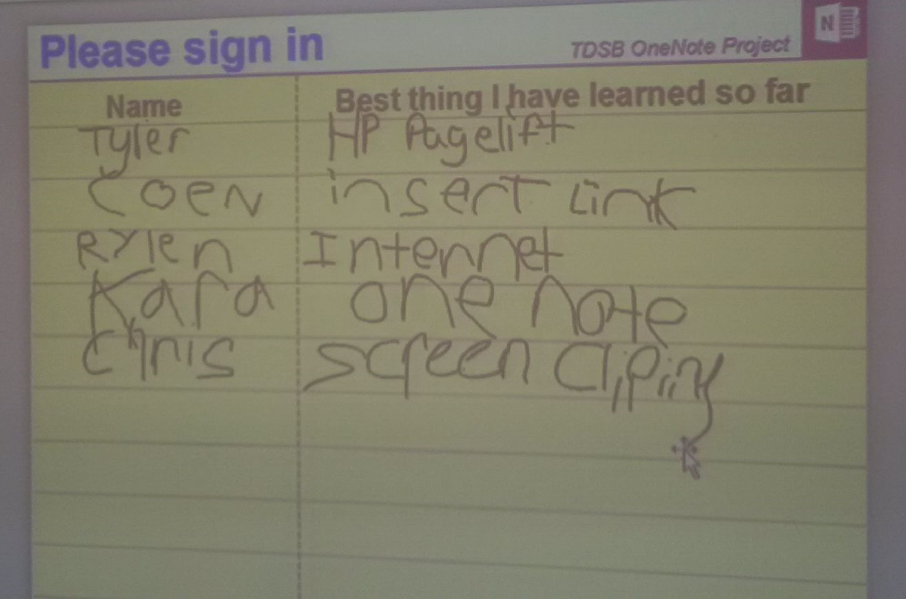
Some examples of what students shared as being their favourite thing that they learned through participating in this project.

Over the course of our visits in each classroom, students learned how to use a wide variety of tools that OneNote has available and made connections with how these tools can be used to support their ability to organize both their leaning tasks as well as their academic life.  For example, in our final session students learned how to create a table and how to use the “Snipping” tool to create a table with visuals.


Some examples of how students used the Table tool to organize information. Visuals were created using the “Snipping” tool.
Students then participated in a discussion on how tables are used to organize information and, why using visuals such as those created using the Snipping tool, help make the table even more useful (for example, one student commented: “Because a picture is worth a thousand words!”).

Overall, we had a great time working with the Intermediate students in Mr. DeFazio and Ms. Sharif’s class at JS Woodsworth this year. Thank you for participating in this project and we look forward to hearing all about how you continue to use your tablets and OneNote next year!


Friday, January 9, 2015

Infographic: OneNote pilot project student profile

Here's an infographic created based on what students have been telling us about their work habits and tools that they use.


Wednesday, November 19, 2014

OneNote marker students update

Many of our students who were in grade eight last year and who are now in grade nine this year have continued to use their tablets and OneNote software to support their personal organization and academic lives in high school.  Students have recognized and embraced the useful features of OneNote to help them create Notebooks to organize themselves for all the subjects they are taking. Students are also continuing to colour code subject tabs to help them organize themselves. Below is an example of one grade nine student who has developed enough independence with using the tablet and software in order to organize himself for success in grade nine:

Students report they are enjoying having the ability to access the internet to do research in order to deepen their understanding of concepts being taught in their classes. Students also report they appreciate having the option to type notes, use the sound recorder to record parts of lessons, or using HP LiftApp to import pictures into OneNote taken with their tablet. Below is an example of how a student has used OneNote to take notes in Science:


In another school, one student created his own self-regulation strategy to help the student refocus energy during times of the day. The student created a section of pages to draw on when the student is feeling angry or anxious.


Overall, many of our former grade eight students are enjoying having a tablet to support their learning and their organization in high school. And, thanks to the feedback and advice they continue to provide us with, we continue to use this information to further improve our project!

Thursday, November 13, 2014

OneNote pilot project reflection

Reflecting on our 2013-2014 OneNote Pilot Project


Our OneNote Pilot Project was born from our team’s desire to support the transition of our at-risk students with special educational needs move from intermediate to secondary school.  Many of our students struggle with executive functioning, particularly when it comes to organization and planning which is why we chose OneNote. 

Microsoft OneNote is a digital notebook in which the student can directly make notes and gather material. The student can collect, organize, and share their notes in this electronic format that is a substitute for the traditional binder – no more lost handouts or schoolwork!

During our Pilot we supported 216 students at 26 schools across the Toronto District School Board.  Of those students:
  •       73% say that they finish and hand in their class work, homework and assignment on time always or most of the time
  •       75% say  that since using OneNote, they use their class time appropriately to complete their work always or most of the time


Check out our latest YouTube video which summarizes our OneNote Pilot: http://youtu.be/jimH3_5PxU4

Follow us on Twitter: https://twitter.com/AssistTech

Wednesday, May 21, 2014

AT & Mathematics project concludes with sharing at "Bring & Brag" session

Our “I Have Assistive Technology in my Classroom…How Do I Use it in Math?” project wrapped up on Friday May 16th. Teachers who were a part of this Professional Learning Community came together for our “Bring & Brag” and shared their learning experiences with one another. 
Sandra Castiglione, Pleasant P.S. (Jr. HSP) shares her "favourite" strand of Math to teach - part of the LC warm-up.

Sean Kitney, Secord C.S. (Pri/Jr. MID) shares the Interactive Whiteboard measurement sorting activity his class explored.
Over the course of this project, 12 Special Education teachers co-planned and co-taught math lessons with assistive technology tools embedded in them. Students were given opportunities to deepen their own understanding of math concepts by using these tools to assist them in solving problems and helping them to communicate their thinking more clearly. As part of this job-embedded learning, teachers who were a part of the PLC were able to observe their colleagues deliver their lessons. 

(left) Cathy Watson, Stanley P.S. (Jr. HSP) shares work samples by one of her students demonstration his progression of learning following an Interactive Whiteboard hands-on lesson. (right) Abbas Hussein (Int HSP) shares the geometry activity his students explored with the LC group.
On Friday, the PLC came together and each teacher presented their lesson and reflections on their professional learning. At the end of the session, each teacher left with a memory key containing all twelve lessons as well as the teacher personal reflections contained on it.  Thank you to this dedicated group of teachers, who co-planned, co-taught and opened up their classrooms as part of this PLC!

Here's a video highlighting work done at the 12 schools: 

Wednesday, May 7, 2014

Second phase of OneNote pilot project teachers share at Learning Community

It was a full house at Burnhamthorpe Adult Learning Centre last week for the intermediate pilot project Learning Community gathering. Special education teachers from East and West schools across the TDSB are at the mid-way point for their classroom phase of the Assistive Technology team's OneNote project.

Teachers shared ways that the OneNote pilot has been successful in their classrooms.

Teachers shared, ranked and inquired about how the OneNote software and the tablet is supporting their students in organization and transitions. During the session teachers had the opportunity to work with their peers in various groupings. Here are a few photos taken during the afternoon.


(left) Coming up with their top-10 tools  of OneNote which supports student learning (right) Discussing organizational strategies embedded in OneNote and the tablet..

The entire teacher group's top tools list (more than 10) and it could have been a longer list!
One group's top 10 list created in OneNote.


Monday, April 14, 2014

OneNote pilot celebratory video and check-in with intermediate pilot schools throughout the TDSB

Our phase 1 portion of the Microsoft OneNote project is complete. And in other special education classrooms across the TDSB, the journey to organization and independence using OneNote has just begun.

Enjoy another of our celebratory videos. This one shows phase 1 schools' OneNote project review:


Buchanan Public School


These students were excited about sharing what they had done on the tablets. Most said they were using it for Notes, Microsoft Word and school work!  


Heritage Park Public School

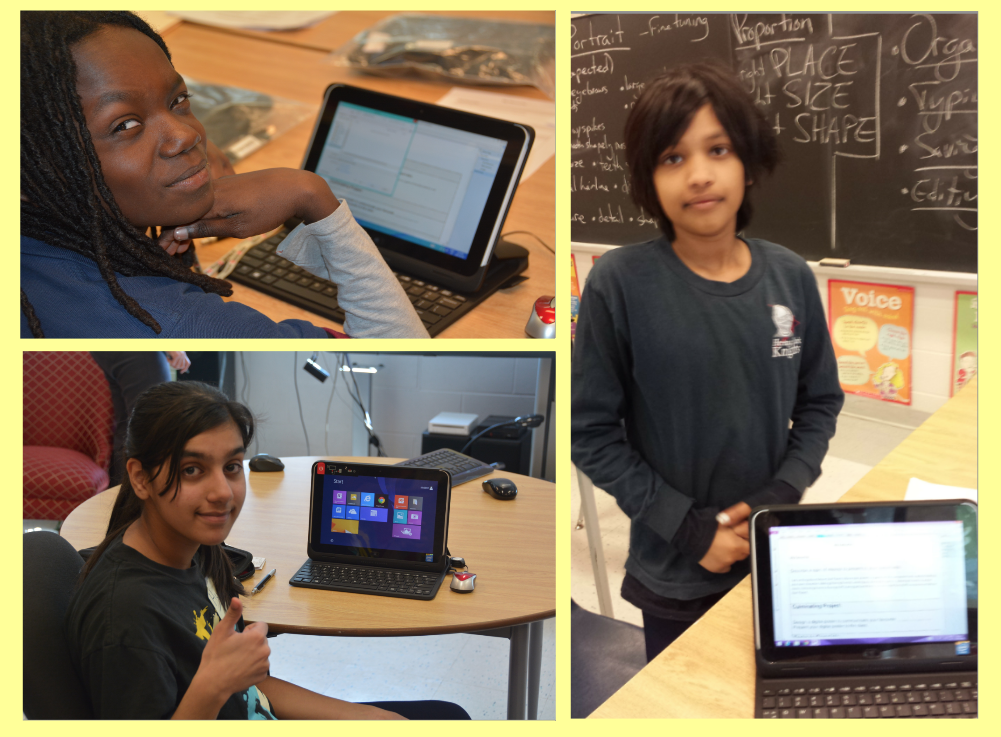
Heritage Park students using OneNote in various ways including Karishma (photo right), who discovered using keyboard shortcuts help her navigate through work on the tablet.
At Heritage Park P.S., the kids were excited to get started with OneNote.  The students are very tech savy and fairly quickly figured out how to start customizing OneNote tabs.  The Heritage Park teacher, James Watt, also mentioned that one of the girls, Karishma, figured out all the keyboard shortcuts on her own. They were using the shortcuts for an activity they were doing - baking brownies.  

Mr. Watt uses the document camera and students take pictures and write notes using their tablets as well.

Lanor Public School


"This is better than a Promethean board and it is one of the things included in your dream room."   Andrew (photo left) was also thrilled that Read and Write 11 was installed on the tablet.


Other students were excited to try their new tablets as well: Emily said, "They are smaller than a computer and easier to carry around. They are our own and no one can mess them up." While Shea added: "Small and handy." 
Students at Lanor P.S. explore their new tablets.

West Hill Public School


West Hill P.S. students find out what equipment and peripherals they will be using during the OneNote pilot.

Wednesday, April 2, 2014

OneNote pilot project - Blantyre P.S. Intermediate students' complete in-class pilot sessions

The intermediate students in Wendy Klayman's class weren't fooling around the morning of April 1st. The Home School Program (HSP) group finished their last session of the OneNote pilot project. During the session, they explored simple ways to support Math computations using OneNote and reviewed tools and applications used during the project. The class also reflected on ways the tablet and OneNote has changed and/or supported their learning and organization for day-to-day school work.

"My HSP grade 7 students have learned so much with OneNote. Overall, it has improved their organizational skills. They have created tabs for every subject and use the tabs like a binder.  They use Pagelift for “capturing” assignments and homework and they are using the templates and screen clippings for research assignments. Most importantly they are seen as “cool” and other students want to work with them in their classrooms. It has improved their confidence and put them on a level playing field. All of them feel like they couldn’t work without their OneNote". -Ms. Klayman

Blantyre P.S. intermediate pilot students and their top 10 features of OneNote (in no particular order).
Sarah uses  the HP Liftapp to capture her reflection questions.

Students access the tablet in different ways: mouse, stylus and touch screen.
(left) Using HP Pagelift to crop a captured document. (right) Writing a reflection about OneNote and the tablet.

Thank you to Ms. Klayman and her students for a fun and successful pilot project!

Thursday, November 29, 2012

Read and Write Gold EQAO pilot teacher spotlight


TDSB Pilot teachers reflect on Read and Write Gold EQAO journey


Grade 3 students at Thorncliffe Park Public School are smiling. The students and their teachers, Susan Sanderson (Grade 3 HSP) and Dina Ashburner (SERT/IT), are energetically following their first in-class session of the Assistive Technology (AT) teams' EQAO Read and Write Gold (RWG) pilot.

Many of the Thorncliffe students, although not new to technology use in school, are new to the assistive technology software Read and Write Gold. “It's fun and remarkable. It helps me learn,” said one grade 3 student. “It's really great. It helps us learn,” another student added. (Many of the students shared about "What Are Germs?", the title of the non-fiction text they had read that morning.)


Thorncliffe Park P.S. teachers Susan Sanderson (left) and
 Dina Ashburner (right) are two of over 30 teachers across the
TDSB who are part of the second year of the AT EQAO RWG pilot.
During the first in-class session, students learn to use specific tools found in the programme Read and Write Gold - text-to-speech, word prediction, and different colours of highlighters – to support them in answering EQAO-type questions such as multiple choice and short answer questions. One of the main goals of the pilot is to have students be able to use AT independently to support their comprehension and to respond to questions using features of Read and Write Gold in their classrooms and specifically during EQAO testing.

“It's good for the students that they get excited,” Ashburner said. “It will take the pressure off them when they do EQAO. It's hard and they feel like they can do (the test) themselves.”

The students learn to select and use the text-to-speech function of RWG as auditory support to their reading comprehension as well as editing support in writing. They use the word prediction, which also has auditory component, to help support their word use and written expression. The itinerant teachers model the use of the highlighters in a number of ways including identifying evidence in the text they are reading as well as in the process of elimination when student respond to multiple choice questions.


A tweet by TDSB Director Chris Spence on October 11 stated, “We have and continue to underestimate our students with special education needs. Exemptions are down and scores are up.”

The RWG EQAO pilot may be a contributing factor to Spence's sentiments. Many elementary special education students who participated in last year’s pilot, used Read and Write Gold to write the assistive technology version of the EQAO test.

“Read and Write Gold will really help them (the student) express themselves.” Sanderson said. “(When writing EQAO) they will feel more comfortable and confident.”

Lianne McCrea, a grade 3 HSP teacher at Williamson Road Public School, who is also participating in the EQAO pilot this year, says the pilot has been helpful so far in helping her become more familiar with the Read and Write Gold software and how she can connect its use in her Special Education classroom. “Preparing HSP kids for EQAO is a daunting task this helps to give me some ideas on how to approach it with them.” McCrea said.


All together over 30 teachers of grade 3 and/or grade 6 students, in HSP and ISP classrooms, are taking part in the Special Education pilot project. During the pilot, set to run from November through early May. Special Education teachers and their students receive three in-class sessions working with an itinerant teacher. Teachers also meet in geographical region assigned Learning Communities between each in-class session, to share strategies, successes and problem solve ways to support students use of Read and Write Gold.


Reflection on AT EQAO pilot year one
Last year Vesna Mavrou, the HSP/SERT/MART at Tom Longboat Jr. P.S. and her students participated in the inaugural year of the EQAO pilot. She says the most useful part for her students was the directed instruction on how to use the Read and Write Gold software and the specific tools and setting a student would need to effectively use the technology.

“Although it may be difficult at first using the technology the great part is that the students and teacher have fun learning together and everyone is at the same starting point,” Mavrou said. “A few things that were helpful were having the students practise logging in with their own student numbers and passwords, bringing up the Read and Write Gold tool bar and having students saving their work and retrieving it. The only part which was time consuming and worrisome is saving the test and creating files on their desktop for students to access. However, there is support if a teacher needs it.”


Wednesday, June 27, 2012

Boys Project Phase 2 Update: Glogster project highlights

Boys’ Literacy Project Spring 2012


“The Mission is Complete”

The five classrooms that participated in this phase of the Boys’ Literacy Project completed their missions in June. The students incorporated Smart Ideas, Read and Write Gold, media research and iPod technology to produce a variety of projects. Each classroom had their own focus for their mission and final products included book trailers, hero reflections, medieval times research and narratives.


Click on the link below to view a glog highlighting student feedback and links to glogs of the projects completed by the teachers at our final professional learning session.

Cassandra Glogster
West Glen Glogster


Monday, December 5, 2011

Learning Communities snapshot - Pineway P.S. - Using IWB in HSP classrooms

Learning Communities: Student Hands-on learning
An example at Pineway Public School
by: K. Noer
HSP/Resource/MART
Pineway Public School

Recently, my HSP junior class received a Promethean Interactive White Board (IWB).  I had never used one before but was very eager to integrate it into my program.  Even after only a month in my classroom, it became an invaluable tool. 

The students are very motivated to participate in lessons involving the board.  The students actively contribute to shared writing tasks and enjoy group editing and revising.  I am also using Read and Write Gold with the IWB during our shared writing so my students will become more competent using this program during independent writing.  

While working with my younger resource students, the key words from their guided reading are incorporated into fun, simple activities such as saying the word and moving it as quickly as possible into a box. 
In math, we are focusing on patterning so the malleable hundreds charts has really helped engage my students. They also happily volunteer to write their own patterns on the IWB which their peers solve. There are many IWB educational activities that I have downloaded that the students really enjoy.
I thoroughly enjoy the fact that I can save lessons then manipulate them the next day.  Another benefit is collectively generating printable study notes.  This really helps the students who have difficulty copying from the board and allows the students to participate in the discussion rather than struggling to record information. 

Since receiving the IWB in September, it has become an integral part of my planning and we use it every day.  My goal this year is to ensure that the majority of the time my students are actively engaged with the IWB and it is not just supporting my “teacher directed lessons”.  I also hope to become more proficient using it and aware of the extensive capabilities and accompanying resources available.
-----------------------------------------------------------------------------------------------------------
Written expression:
Strategy: Guided writing through the editing process. The student uses the highlighting and pen tools as the teacher guides the lesson on text features of a student writing sample.
Listen to the part of the writing process as Ms. Noer and her student co-edit a document / procedural writing: How to make a Peanut Butter sandwich.


The annotated page: How to Make a Peanut Butter sandwich.

Wednesday, September 7, 2011

Summer reflection - Boys Literacy page -- using Glogster

Over the summer a reflection was created to illustrate the Boys' Literacy project. It was created using the program Glogster.

Wednesday, April 13, 2011

Kensington Community School videos

Student use of iPad: mid-term report (early April)
Community Circle

Snack Time


Spelling

Math - Telling Time

Thursday, April 7, 2011

iPads in Autism Classrooms-Challenges (mid term report)

Challenges

It has been challenging sharing the iPad between two classes. We have had to plan our daily schedules to ensure that each class was able to have time to use the iPad.  Luckily, both of us are flexible and have been able to manage. (Finch P.S.)


No Wi-Fi = ...I took the IPad home when needed to update it. (C.E. Webster J.P.S.)

Our class also faces the challenge of figuring out how to integrate an iPad into a student’s learning in a way that a desktop computer cannot.  Our class has 5 SEA claim computers in it, so many of the students already have access to technology. (Winchester P.S.)

Challenges have included the integration of the ipad into the academic realm to organize and reduce anxiety with fine motor deficits, access to work in other classes, and the ability to print on the intranet.  The fact that the ipad is unable to access the TDSB intranet and student accounts is the downfall.  (Shaugnessy P.S.)

It was extremely time-consuming to debrief and reflect on the morning with [our student] each day in order to collect data. It was also very time-consuming for all staff involved to learn how to program and best use the iPad and Proloquo2Go. (Kensington C.S.)

-high potential for 1 particular student to damage the iPad so he had to be very closely monitored and several times, iPad had to be taken to another classroom because he became fixated on breaking it. (Buchanan P.S.)


post list