Showing posts with label reading. Show all posts

Tuesday, May 19, 2015

Brown Bear comes to Thorncliffe Park P.S. - IWB co-teaching session DD ISP

Brown Bear Comes to Thorncliffe Park

The primary DD program at Thorncliffe Park P.S. received a Promethean Interactive Whiteboard (IWB) for their classroom through the Group SEA Claim process. Classrooms who received SEA IWBs were supported throughout the school year through Learning Communities and co-plan/co-teach job embedded learning opportunities. Donna MacKinnon, Primary DD Teacher of this program, co-planned and co-taught a lesson with Itinerant Resource Teacher, Renée Keberer, supporting this Learning Community.  


Donna’s students have been actively using their IWB, so a lesson was designed about reading and interacting with the book “Brown Bear, Brown Bear” on the Promethean Board. Using the ActiView document camera, screenshots of the book were taken so that the book could be displayed on the IWB. As the story is interactive in nature (sliding tabs and finding objects), this was recreated using various IWB tools. The students would take turns coming up to the IWB to reveal the various animals hidden on the page as the story was read. After the book was finished, independent follow up activities were created for each student to meet their individual needs and ability levels. Some activities were one-to-one matching, selecting the correct item to match, and matching the correct colour to the item. The students were able to navigate to their specific work page by touching either their name or photograph, which would directly link to their activity. While the students completed their independent task at the IWB, the other students were at different centres around the classroom completing various tasks. 

Teachers who observed the lesson were impressed with the engagement of the students and their proficiency with the Promethean Board.


Friday, April 24, 2015

Alternative Access project - using switches to support students - picture book read aloud at Seneca School

Using Assistive Technology to Make Picture Books Come to Life for Students

Most children enjoy visiting their school library and having a picture book read aloud to them. Donna is the Teacher-Librarian at Seneca School and does a great job using assistive technology to bring stories to life and to make library visits a positive experience for the students at Seneca School.

In March, Donna read the story “Polar Bear, Polar Bear What Do You Hear?” by Bill Martin Jr. to classes that visited the library. But she didn’t just READ the book, she used assistive technology to make the story interactive and  accessible for students with various physical needs.

Here are 5 ways to make picture books (e.g., “Polar Bear, Polar Bear What Do You Hear?”) interactive and accessible for students:

1.Read the book, bringing the book close to students so they can see and touch the pictures. Record the repetitive line in the story “What do you hear?” into a voice output device (e.g., Smoothtalker or Step-by-Step), every time you get to that part in the story ask the student(s) to press the switch to say that line aloud.

2. There are pre-made PowerPoint presentations of the book “Polar Bear, Polar Bear, What Do You Hear?” online that you can download for free. Show the PowerPoint presentation on an Interactive Whiteboard and students can use a switch (e.g., Jelly Beamer wireless switch with the receiver connected to a Don Johnston Switch Interface)  to turn the page in the PowerPoint book. Students can also read the PowerPoint book on an individual computer using a switch.

3. Record the different pages of the story into a voice output device (e.g., Step-by-Step with levels) so that during activity centre time students can independently read the book by pressing the switch to read each page (students may need some adult support to turn the pages of the book).

   4. Find some videos of animals that are in this story, during activity centre time play these videos on a computer. One way you can make video viewing interactive and accessible is to set up a switch to be “left-click” and hover the cursor over the pause/play icon on the screen.  Students can press switch to start/ pause video (a great way to help students learn cause and effect use of switches).

These four ideas can be applied to many pictures books. Enjoy creating accessible and interactive literacy activities for you students!

Tuesday, April 22, 2014

Getting Interactive with non-fiction text- Charlottetown P.S. observation session

Visualizing Non-Fiction Text - An observation class at Charlottetown P.S. 

The HSP class at Charlottetown P.S. learned how pictures help their understanding of non-fiction text. Their teacher, Neo Porter, collaborated with Itinerant Resource Teacher in Assistive Technology, Renée Keberer, to co-construct a lesson on the Promethean Interactive Whiteboard (IWB) to demonstrate this concept. 

Text and images from a variety of texts were captured using the ActiView document camera and displayed on the IWB. The types of pictures that were focused on were closeups, diagrams and photographs. Students visualized the image as the teacher read the text while the picture was covered up. The students then did a variety of things. For the closeup picture they sketched the image based on the text (what the nose of a star-nosed mole looked like). For the diagram, they discussed with a partner what the image looked like (what a prairie dog ‘town’ looked like). 

Lastly, for the photograph they discussed the similarities and/or differences between the image they visualized and the actual image (dirty water from a watering hole). The actual images were uncovered after each activity. After completing the lesson the students conveyed how seeing the actual image helped them better understand the descriptions and content of the text. As a follow up activity, the students were given the task of selecting two pictures from books of their choosing and discuss how the picture helped deepen their understanding.
The teachers who were observing this lesson commented on how engaged the students were and how rich the discussions were.

Please see below for some images of the first task.

(left) Description of the star-nosed mole. (right) Actual close-up of the star-nosed mole.

Two examples of student drawings after hearing a description of the mole's nose.

Monday, January 27, 2014

Learning Community recap - engaging students using multimedia

Special Education teachers participating in the Interactive Whiteboard Learning Communities this year just completed session three - Engaging Students using Multimedia. At some of the sessions, including the intermediate Home School Program / Learning Disabilities Learning Community group, part of the LC session included a guided-reading lesson in order to highlight ways the document camera could support students.

A simple and engaging way to use the document camera is that any document such as textbook, picture book, or worksheet can be projected right onto the Interactive Whiteboard, which provides students with a large visual support during guided reading activities.

Along with a live view, the teachers also explored how student work can be captured and stored digitally onto an ActivInspire flipchart. This allows for editing and annotating - while the student's original work is left intact.

Capturing a page of a picture book using
the document camera.
Int. HSP teacher, Stephen Scott from J.B. Tyrrell P.S.
uses the document camera to produce a live image of his writing.
Along with still images, video can be captured using a document camera. The camera is on a movable arm, which can be pointed to face a student or teacher. Teachers can record prompts or instructions that can be reviewed by students as many times as is required. Students can also record their ideas which can be replayed and examined - supporting their oral communication of ideas as well as helping them to develop presentation skills.

Naomi Wyman, Intermediate HSP teacher at G.A. Brown, practices
using the document camera to record a video of herself asking questions.
During the session, teachers were given hands-on time to build a lesson around a literacy document they brought with them. The itinerant resource teacher helped to support the embedding of the technology to accommodate student learning needs. Following some reflection and discussion, the Intermediate LC came up with a list of a few ways they would immediately go and use the document camera in their classrooms including one teacher who commented: "The document camera can be used in all curriculum areas to engage the students and help model and differentiate instruction."

Other examples of teacher responses included:
  • Teacher and student modelling, procedure, guided reading
  • I am excited to try with a microscope.
  • Hands on tech demo, art process demo
  • Demonstrate math solutions with manipulatives
  • Another way to share what they (students) have learned
  • Presentation, show math solutions and reading language texts
  • Animation

Intermediate HSP teacher Anita Ghosh used the document camera on the following week. Her students used
the document camera to share a comic strip they created during a Visual Literacy co-teaching session


Monday, December 9, 2013

AT Read and Write Gold EQAO in-class sessions underway


EQAO In-Class Sessions begin…


The Assistive Technology Itinerant Resources Teachers are excited to be back in special education classrooms across the TDSB to support using Read and Write Gold (RWG) when writing the Education Quality and Accountability Office (EQAO) Assessment. During this first session, students are shown how to customize the RWG toolbar so that they can access the features supported by EQAO. They also have an opportunity to experiment with which voice and speed best suit their needs when listening to text, along with how to use highlighters to better support answering multiple choice type questions. Lastly, they are shown how to set up their computers in dual page mode so that they can have the reading passage and questions side by side. 

Example of how highlighters can be used to support answering 
multiple choice questions ~ pink to eliminate choices, and yellow for the best answer.


Student from Bowmore Jr & Sr P.S. 
using dual page to answer questions.

Student feedback from Hollycrest – (J/I HSP)

Thursday, May 9, 2013

A.T. Team at ASET - group effort at annual Spring Conference

SEA Team at ASET Conference in Niagara Falls


The ASET (Association for Special Education Technology) conference took place in Niagara Falls on May 3rd, 2013. Members of the SEA Team attended Conference to learn new and exciting ways to support our students in special education using technology.

A.T. team group includes: a Coordinator, Technical Specialist, three Technical Facilitators,
six Itinerant Resource Teachers and one SEA consultant (not pictured)


Four of our SEA team members lead workshops at the conference.  Lisa Mast and Andrea Statton, both Itinerant Resource Teachers- SEA Team,  lead a workshop titled “Increasing Student Engagement and Differentiating Instruction in your Literacy Program using Interactive Whiteboards”.
Andrea Statton (left) and Lisa Mast (right)


Christina Mathura and Valia Reinsalu, both Itinerant Resource Teachers- SEA Team,  lead a workshop titled “Interactive Whiteboard Tools and Learning Accommodations: Making Math Mathemagical”.


Valia Reinsalu (left) and Christina Mathura (right).
Both groups engaged their audiences when leading their workshops and sharing some of the outstanding things we do in TDSB to support our students’ learning needs using Interactive Whiteboards.

To access the resources from the ASET conference including the Literacy Program resources please click on the following link: http://aset-ontario.ca/confernce_resources/ .  For the complete Math is Mathemagical resources folder click: http://bit.ly/13PhVtN


It was truly a team effort at the ASET Conference as the technical team and teacher team worked together to ensure the success of our workshops.


Thursday, April 4, 2013

Read and Write Gold referral at Macklin P.S.

Read and Write Gold Referral at Macklin P.S.

The SEA department offers special education teachers the opportunity to co-plan and co-teach a lesson with an Itinerant Teacher in Assistive Technology. Sahaira Khan, from Macklin P.S., did just that with her grade 6 students. She planned a lesson with an Itinerant Teacher using the theme of empathy as a follow up to a wonderful Remembrance Day assembly. Read and Write Gold was used to support her students during both a reading and a writing task.

During the first session her students read a poem written by a soldier, entitled “Wheelchair Soldier.” They used the playfeature of RWG to help support their reading and understanding of the poem, and the highlighterand predictiontools to help support the answering of questions.
The second session had students writing “Letters to The Troops.” First as a group, the students brainstormed ideas for the letter - Tell about yourself (paragrah 1), Ask questions (paragraph 2), Well wish (paragraph 3). 

Student Brainstorm for their “Letter to the Troops”
They then used the predictionand dictionaryfeatures of Read and Write Gold to write a letter to a soldier, and the spell checkand read backfeature to edit their work. 
Students hard at working creating their letter using Read and Write Gold (left); Observing teacher looks on as a student uses the Word Prediction feature to help compose his letter (right)

Their teacher, along with the observing teachers, commented on how engaged and independent the students were. Some said that this is the most the students have ever written before. The students themselves were very proud of their accomplishments.

In their own words…

“Thank you for helping us using Read and Write Gold. I like to use Read and Write Gold because when there is important information I can use the highlighters to underline the important information. And there is a play and pause button to read the information that I have wrote on the computer. The word prediction was useful because I can’t spell words all the time.” ~ ‘K’ a grade 6 student

“Thank you for helping me improve my skills on read and write gold. I think it will really be useful to me when I have a project because it reads the text to you and if you have a mistake you can find out what it is because sometimes you can make mistakes even when you read the text over. I also like the highlighters because when you are highlighting you can highlight the important and valuable information. It is a really good process and it will help me sometime soon when I get an assignment.” ~ ‘S’ a grade 6 student

Thursday, February 28, 2013

Exploration Classrooms in AT & Special Education

Exploration Classroom – AT Focus


The Assistive Technology Team recently hosted an Exploration Classrooms for Special Education and Assistive Technology.


On February 22, Lisa Sherman welcomed visiting teachers to her HSP Classroom at Allenby P.S. Teachers observed three literacy centres that focused on matching voice to purpose and identifying the author’s point of view.
Guided reading

At the writing centre, students used a SMART Ideas template and Read and Write Gold to plan their first person narrative - written from the point of view of Harriet Tubman. At the SMART Board centre, students viewed a “behind the scenes” video and completed a video response. While students worked independently at those centres, Lisa taught a guided reading activity in which students compared a third person article to a first person narrative text. Visiting teachers were impressed with the facility and independence her students demonstrated with the assistive technology.

Video Response
SMART Ideas, Read and Write Gold
In the afternoon, all had the opportunity to debrief the lesson and to review the activities the students had completed prior to our visit. Lisa shared the success her students have had using templates in Smart Ideas to plan and organize their written assignments, as well as how she integrates Read and Write Gold and whiteboard technology into her teaching. Visiting teachers then had the chance to plan a language activity that integrated assistive technology.


We would like to thank Lisa for sharing her knowledge, expertise and challenges using AT in her classroom.


Look on Key to Learn for an opportunity to visit our other Exploration Classrooms in March, April and May.

Thursday, June 7, 2012

SEA IWB Learning Communities come to an end

21st century literate learners - Visual literacy to promote Critical thinking

Our final Learning Community (LC) ended on a high note focusing on literacy, specifically visual literacy. The power of pictures to teach, make predictions and inferences, and draw conclusions and summaries, were highlighted throughout this session. Using the Luke and Freebody Four Resources Model to emphasize the important elements of being literate in the 21st century, along with “High Yield Instructional Practices” that focused on i) Good Questions ii) Accountable Student Talk iii) Critical Thinking, helped to shape this very interactive session. Carefully chosen pictures and scaffolding questions help to derive relevant information from visuals.

The Critical Thinking Consortium's
Investigating Images unit


Teachers worked through a number of pictures, aided by appropriately placed/timed questions, gradual revealing of the picture, and gradual presentation of facts. The richness of the discussion that resulted paired with the questions that were raised allowed for a much deeper understanding of ‘what was happening in the picture’ rather than just simply taking a quick glance.

Functional literacy - DD exceptionality focus

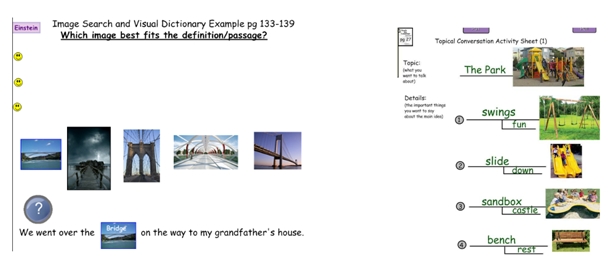
The DD teachers looked at functional literacy with visual supports. Again with the support of Sue Macvicar-Stewart, Low Incidence Coordinator, teachers were presented with developmentally appropriate ways to teach functional literacy – from the concrete to the visual to the abstract. Teachers were also shown numerous ways to help their students express themselves, as independently as possible, using various assistive technology programs and equipment, such as Clicker 5, Read and Write Gold (Picture Dictionary), Boardmaker, and the Ladibug Document Camera.


Reading Comprehension & Social Language for ASD students
The ASD teachers focused on reading comprehension and social language. Many students with ASD have a narrow and deep information base, meaning they know lots of information but only on a few topics. This really limits their literacy ability- from vocabulary to social interaction. Various strategies were demonstrated that discussed visual ways to teach vocabulary, for example using visual dictionaries, word associations or connotations, and contingent words or analogies. Other visual ideas were presented which further helped support reading comprehension and social conversation. Monica Rivera, Speech and Language Pathologist with the ASD team, provided invaluable resources and support for this session.


Promethean Bus visits a success


The AT Team and Promethean shared the learning technology with the TDSB Special Education Advisory Committee (SEAC) Monday evening at 5050 Yonge Street.

TDSB staff, students and the Special Education Advisory Council enjoyed visits with the Assistive Technology Team and Promethean Interactive Whiteboard members as part of the Promethean bus tour this past week. The bus parked outside of Head Office (5050 Yonge Street) on Monday.  TDSB schools, whose IWB group claim have been approved for the upcoming school year 2012-2013,  were invited to visit the bus at Cosburn M.S. and Glamorgan P.S. in the east on Tuesday. On Wednesday, the Promethean bus and AT team visited TDSB West at George R Gauld P.S.


See next week's blog entry for photos and video of the "TDSB AT Spring Tour 2012" event.


Thursday, January 26, 2012

Family Literacy Day with an AT focus at Chalkfarm P.S.

Family Literacy Day at Chalkfarm Celebrated using Read and Write Gold Assistive Technology
Family Literacy Day kick-off
Today (Thursday Jan. 26), while the entire school was participating in a Drop Everything and Read (DEAR), Ms. Freedman’s students at Chalkfarm P.S. were also reading.  But this class participated in DEAR with the help of Read and Write Gold assistive technology.
The students were especially keen to read articles on websites such as National Geographic for Kids and Sports Illustrated for Kids  - above their independent reading level, but at their listening comprehension level. Some of the text was already in digital form , so students independently used the Reading Tools found in Read and Write Gold.  When they encountered text that would not allow them to read, they used the Screen Shot reader.

Linking the AT Itinerant referral to Family Literacy Day In the fall of 2011, Ms. Freedman of Chalkfarm P.S. had requested to work with an Assistive Technology Itinerant Teacher to embed the use of Read and Write Gold in her lessons. She felt that her ISP class would benefit from greater use of Assistive Technology throughout the day.

Ms. Freedman and the Itinerant teacher co-planned and then later co-taught some lessons that involved using Read and Write initially to support the students' writing. After, they reflected on the first lesson by using a graphic organizer to frame the discussions-- about what worked well, what needed improvement and what steps should be taken next. 
“ The students are excited about Read and Write Gold, and we want to thank you for giving us opportunities that we never would have had," Freedman said, in her reflections on the process. "We love the hamburger graphic organizer because as a class, we can reflect on the things that we did well and the things that we still need to work on.”

Monday, May 30, 2011

iPads in ASD classrooms - Buchanan Public School

Ms. G shares how the Reading Buddies program is enhanced with student iPad use.

Video to come here.

post list