


Monday, July 11, 2016
post1
Proin gravida nibh vel velit auctor aliquet. Aenean sollicitudin, lorem quis bibendum auctor, nisi elit consequat sit amet nibh vulputate cursus a sit amet mauris. Morbi accumsan ipsum velit. Nam nec tellus a odio tincidunt auctor a ornare odio. Sed non mauris vitae erat consequat auctor eu in elit. Class aptent taciti sociosqu ad litora torquent per conubia nostra, per inceptos himenaeos. Mauris in erat justo. Nullam ac urna eu felis dapibus condimentum sit amet a augue. Sed non neque elit. Sed ut imperdiet nisi. Proin condimentum fermentum nunc. Etiam pharetra, erat sed fermentum feugiat, velit mauris egestas quam, ut aliquam massa nisl quis neque. Suspendisse in orci enim.


post2
Proin gravida nibh vel velit auctor aliquet. Aenean sollicitudin, lorem quis bibendum auctor, nisi elit consequat sit amet nibh vulputate cursus a sit amet mauris. Morbi accumsan ipsum velit. Nam nec tellus a odio tincidunt auctor a ornare odio. Sed non mauris vitae erat consequat auctor eu in elit. Class aptent taciti sociosqu ad litora torquent per conubia nostra, per inceptos himenaeos. Mauris in erat justo. Nullam ac urna eu felis dapibus condimentum sit amet a augue. Sed non neque elit. Sed ut imperdiet nisi. Proin condimentum fermentum nunc. Etiam pharetra, erat sed fermentum feugiat, velit mauris egestas quam, ut aliquam massa nisl quis neque. Suspendisse in orci enim.


Saturday, July 9, 2016
Title of post 1
Proin gravida nibh vel velit auctor aliquet. Aenean sollicitudin, lorem quis bibendum auctor, nisi elit consequat sit amet nibh vulputate cursus a sit amet mauris. Morbi accumsan ipsum velit. Nam nec tellus a odio tincidunt auctor a ornare odio. Sed non mauris vitae erat consequat auctor eu in elit. Class aptent taciti sociosqu ad litora torquent per conubia nostra, per inceptos himenaeos. Mauris in erat justo. Nullam ac urna eu felis dapibus condimentum sit amet a augue. Sed non neque elit. Sed ut imperdiet nisi. Proin condimentum fermentum nunc. Etiam pharetra, erat sed fermentum feugiat, velit mauris egestas quam, ut aliquam massa nisl quis neque. Suspendisse in orci enim.


Title of post 2
Proin gravida nibh vel velit auctor aliquet. Aenean sollicitudin, lorem quis bibendum auctor, nisi elit consequat sit amet nibh vulputate cursus a sit amet mauris. Morbi accumsan ipsum velit. Nam nec tellus a odio tincidunt auctor a ornare odio. Sed non mauris vitae erat consequat auctor eu in elit. Class aptent taciti sociosqu ad litora torquent per conubia nostra, per inceptos himenaeos. Mauris in erat justo. Nullam ac urna eu felis dapibus condimentum sit amet a augue. Sed non neque elit. Sed ut imperdiet nisi. Proin condimentum fermentum nunc. Etiam pharetra, erat sed fermentum feugiat, velit mauris egestas quam, ut aliquam massa nisl quis neque. Suspendisse in orci enim.


Wednesday, June 1, 2016
Assistive technology software resources to start off the school year

Read and Write Gold

The TDSB continues to have the license for take-home rights for staff and students to use this amazing assistive technology software Read and Write Gold (RWG). This software not only helps to support reading comprehension and decoding, but also has tools that support students with note taking, research, content organization, and creation of voice notes. TDSB staff and students can get download instructions at:

There is a lot of material, training tips and tricks on our internal Academic Workspace site as well. TDSB staff logged into the internal system can access info for software such as Active Inspire, Clicker 5, Microsoft OneNote and Boardmaker 6.
Click here: AW to access the AW SEA technology site.
S.E.A.side newsletter

Our newsletter is published several times throughout the year. It provides highlights, profiles and information about our latest assistive technology projects. Here's the latest newsletter outlining our Math and AT project click here.
We even award prizes to subscribers.
If you are TDSB staff and want to subscribe to our newsletter so you get the latest information right to you e-mail click: TDSB S.E.A. newsletter.
Itinerant referral at Fenside P.S.: persuasive writing
Professional Learning Communities for Special Education teachers new to using their Promethean Interactive Whiteboards have been in full swing since October. In addition to attending Professional Development sessions, learning community members have recently begun taking advantage of job-embedded PD opportunities. Some teachers have co-planned lessons with Itinerant Resource Teachers (IRTs) and then have kindly invited fellow learning community members to observe the lesson as it is co-taught with the IRT. Jennifer Samson from Fenside PS recently co-planned a lesson on persuasive writing and shared the lesson with fellow learning community members. Jennifer’s HSP students were highly engaged and showed tremendous enthusiasm when using tools such as the Magic Ink and Sound Recorder. Observing teachers were also very excited to have many more ideas for ways to use these tools in their own classrooms. Following the lesson, the observation teachers engaged in a discussion on how the assistive technology had been authentically integrated into the lesson to support student learning. We look forward to facilitating more co-planning and co-teaching opportunities in the New Year!

Sunday, May 29, 2016
Ways to access the Promethean Board - a refresher!

Please refer to the Blog Post on January 17th http://bit.ly/17fYFpV for more information on these seven ways to access the Promethean Board.
An eighth way to access the Promethean Board:
Some students may have difficulty accessing the Promethean Board in traditional ways due to a variety of challenges. An additional way that students can access the Promethean Board is to use a switch. Using a switch allows students to interact with the lesson or activity, increases independence and encourages participation in a group setting.
This is an example of a wireless switch called a Wireless Jelly Beamer switch and switch interface called a Crick Switch Interface.

Please watch our YouTube Video to learn more about how to use switches with your Promethean Board. http://bit.ly/GGObcz
OneNote Intermediate Project launch
OneNote Intermediate Project launch
 |
| One group of OneNote pilot teachers: Trevor Wong (Macklin P.S.), Wendy Klayman (Blantyre P.S.) and Miriam Taylor (Tecumseh P.S.). |
 |
| OneNote Meet and Greet session teachers (left to right): Shailesh Maharaj, Warden Avenue P.S. (7/8HSP); Glen Barbeau, D.A. Morrison M.S.(8HSP); Jeff Gilbert, Samual Hearne M.S. (7HSP) and Aleem Remtulla, D.A. Morrison M.S. (7/8 ASD ISP) |
Friday, June 26, 2015
Year end reflection & See you in 2015-2016 school year from the SEA team!
As the school year winds down, the SEA Team would like to take this opportunity to thank all of the wonderful and amazing teachers who have worked with us this year and who have strived to better understand how they can use assistive technology to improve their students’ learning outcomes. We all know that using technology isn’t always easy! Nonetheless, the teachers we have worked with this year have persevered and succeeded in embedding the use of assistive technology into their daily practice. Whether it was using ActivInspire with a Promethean Interactive Whiteboard to differentiate instruction and increase student engagement, or learning how to use Microsoft OneNote to support students’ organization skills, or Geometer’s Sketchpad to help students find new ways to communicate their mathematics reasoning, teachers trusted us to help them and their students and were successful beyond our expectations. Below are a few samples of some of the feedback comments we received:
Interactive Whiteboard Learning Community
 |  |
“The Professional Development Learning Community sessions were informative and provided me with lessons and ideas that I used with success in my classroom immediately following the PD sessions.”
“To my surprise, the Co-planning/Co-teaching time with the Itinerant Teacher was the most beneficial because I had the opportunity to see some of my teaching ideas come to life on the Promethean. Not only did I get to try out some of the newly taught functions on the Promethean Board, I also had a chance to build and trouble shoot ideas one to one with an experienced Promethean Board teacher and user. It was also great to see how individualized a lesson or activity could become just by knowing what functions to activate or deactivate when students were participating in a lesson.”
“Attempt to use the devices given and try to implement them as much as possible into your lessons. The students loved using the new interactive technologies.”
"After each session go back to your school and try it out immediately, this way you don't have the chance to forget what you learned -embrace this opportunity and be prepared to learn a lot.”
OneNote for Organization Project (student responses)
 |  |
Q: During lessons, I made an effort to persevere with work I found challenging.
“I would take a picture of it, send it to my binder and have Read and Write Gold 11 [RWG11] read it to me.”
”I sometimes have a hard time remembering things, so I use the record sound tool, so I could go back and listen.”
I Have Assistive Technology In My Classroom…How Do I Use It In Math? Project
 |  |
Q: To what extent do you feel using assistive technology helped deepen your students' understanding of the math concept(s) that were taught?
“Kids are more willing to collaborate and help one another to understand concepts. It provides more opportunity to offer differentiated instruction. Can cover more concepts…less time on paper/pencil tasks. Can quickly evaluate if individual students have learned concepts for programming purposes.”
“My students really enjoyed our lesson using GSP [Geometer’s Sketchpad]. They were extremely motivated and engaged!!”
Q: Thinking back to your personal goals for wishing to be a part of this project, to what extent do you feel you were able to meet those goals?“I met all of my goals because my wish was to become more comfortable with other programs/technology available, and pass that comfort and understanding along to my students. That happened, especially with GSP [Geometer’s Sketchpad].”
We also received some excellent constructive feedback on how we may improve upon the Professional Development opportunities our team offers and are already working hard planning for next year with many of those suggestions and ideas in mind.
In conclusion, we want to wish all of you a safe, happy, restful summer. Please don’t forget to make a regular habit of checking DirectLine and Key-to-Learn each week for news regarding our Professional Development opportunities.
We look forward to working with our Special Education teacher colleagues again in 2015-16!
Tuesday, June 23, 2015
Summary of our OneNote tablet project for organization and transitions - successes
OneNote Successes
Teachers that participated in the OneNote Project for the 2014-2015 school year came together to share their experiences, successes and strategies. Many student success stories were shared with the group; along with the OneNote strategies/tools they found the most beneficial for their students.

Teachers identified many strategies and tools that helped support their students. The top ones that were suggested by many participants were:
- HP PageLift which allows students to take a picture of worksheets or teacher notes on a blackboard/Interactive Whiteboard or anchor chart, insert them into their OneNote binder and then annotate on top of them
- Screen Clipping which allows students to take a snapshot of text or images from websites and insert that information into their OneNote binder, complete with the URL link and date/time stamp.
- Draw Tools which allow students to highlight information (whether digital or images)
- Tabs to allow students to organize their work into subject specific sections
- Paper options so that students could use graph or lined paper in their OneNote
- Tags so that student can identify important information, to dos, or questions to ask

Teachers also provided some feedback on how they have supported or could support their student’s transition to grade 9.
Some of the ideas were:
- creating a grade 9 binder with students prior to the end of the school year
- visiting the student’s high school to take pictures of the school map/schedule to place in their OneNote binder
- reminding students about the training videos within their Training and Resource Tab that review various OneNote tools
- providing information about the OneNote project to high school teachers; and review/teach self-advocacy skills
The participants also provided valuable feedback on behalf of their students. They expressed that daily/regular use of their tablet and OneNote software, the in-class sessions provided by the Itinerant Resource Teachers with SEA Team, and the auto save feature were some of the reasons that their students were able to comfortably use this technology independently.

Teachers felt that their student’s anxiety was reduced and their engagement improved through the organizational aspects and ease-of-use OneNote software. They commented on improved attendance, increased confidence and independence, and a positive sense of ownership and pride in their students.
As well, teachers shared how their student’s achievement improved by participating in the OneNote Project. They noted how their reading and writing improved through using Read and Write Gold in conjunction with OneNote. They also mentioned how their students were now more digitally literate and much more able to keep themselves organized. They were reviewing and revising their own work independently, without reminders, and stated that how through increased engagement and participation their behaviour improved.

Lastly, the teachers believed their students were better prepared for high school as a result of becoming digital learners, being better able to organize, themselves, improved self-advocacy, and increased confidence.

Friday, June 19, 2015
Using Geometer's Sketchpad to support and promote student learning in Mathematics

1. Students can create geometric shapes with ease choosing the point, line segment or polygon tool allows increasing degrees of scaffolding. Once a shape has been created the shapes' properties using the measurement tab for example. There's also a built in calculator which allows a student to select elements on the page (eg. angle measurements) to do a quick computation.
 |  |
2. Use GSP to manipulate elements similar to on an interactive whiteboard.
 |  |
Images from other sources can be copied and pasted onto a GSP page. Then tools can be incorporated so that the page works like an interactive whiteboard. Add shapes to chunk and cover elements on the page. Use the pen tool to fill in information. As well, use the text tool to type in vocabulary and create written answers.

3. It's a flexible programme that can be used in conjunction with assistive technology software Read and Write Gold - word prediction and text-to-speech to help support students' written communication. To differentiate tasks teachers can put in Action Buttons - either to link out directly to a web site resource or the Hide/Show Action Button - where text hints or eg. success criteria can be accessed and then hidden to ensure a decluttered page.

4. There are many dynamic custom tools which can be used with the basic Geometer's Sketchpad interface. See the Ontario Association of Math Educators (OAME) Mathies learning tools site here to access the GSP Virtual Manipulatives file. And for more support documents and sample activities visit the GSP Resource Center.
Tuesday, June 16, 2015
Preparing for the end of the day - SEA IWB in-class session David&Mary Thomson C.I. spotlight
Home Time at David and Mary Thomson C.I.
Raj Singh, Low Incidence Teacher at David and Mary Thomson Collegiate Institute, has been participating in Learning Communities through the SEA Interactive Whiteboard Group Claim. Along with attending sessions throughout the school year to learn various ways to use the Promethean Board to engage his students and promote independence and learning, he partnered with the Itinerant Resource Teacher leading the Learning Community to Co-Plan and Co-Teach a lesson.
During the Co-Planning session, a home time schedule was created. Visuals were used to support his students’ independence in preparing for the end of the school day and in writing a journal about what activities they participated in.
 |  |
(left) End of the day “Checklist of Daily Chores.” (right) Students take turns checking off items.
 |  |
(left) Students select the activity they did from templates created on the Promethean Board. When the picture symbol is selected, the corresponding sentence appears. (left) If the students did an activity that is not represented on the Promethean Board, the student will write it in using the pen tool.
 |  |
Students then write their journals for the day using the sentences as prompts. Some students will copy the sentences, while others are able to create their own.
David and Mary Thompson C.I. also offers real life employability skills training. They have converted one of their classrooms into an area where their students can practice skills that will support their future employment.
Friday, June 12, 2015
Curriculum and Resource Technology - Have You Seen The SEA C.A.R.T. Claim In Action?
The response to the SEA C.A.R.T. (Curriculum and Resource Technology) Claim has been both exciting and inspiring. To date, 108 claims (1 080 laptops) have been approved and delivered to schools. Support and training has been ongoing in the schools and in our training labs. Take a look below at how staff and students are embracing the use of the technology to differentiate instruction and to support individual student learning needs.

Everyday Learning at Scarborough Village
It is all about developing independence. Students in Ms Taylor’s HSP program retrieve their assigned laptop and begin work immediately upon entering the classroom. A.T. is consistently embedded into the success criteria for their language and math assignments. In the students’ integrated classes, the laptops are used to facilitate group work incorporating the technology. Students readily support one another to select the tools for the task and to customize those tools to meet their individual needs (as evidenced by each student’s customized Read and Write toolbar).
Only the Second Session of Training at R.H. McGregor
It is hard to believe that the grade 2, 3, 4 and 5 students at R.H. McGregor have only completed one session of their C.A.R.T. support with the A.T. team. Students have already customized their Read and Write Gold toolbar and selected the best voice and speed to comprehend a text.
Today the focus is on using more tools in Read and Write to build their comprehension skills. As the students build a visual vocabulary list using the vocabulary tool, a student comments “Something cool just happened!”, as images and definitions for new vocabulary appear in an organized chart. Another student evaluates both the text and picture dictionary tool and reports, “I like the picture dictionary better”.
The support from the A.T. team is all about selecting the right tools to support a student’s individual learning needs.

Investigating Read and Write through a Mathematics Lens
C.A.R.T. Project schools that have completed their in-school training and support were invited to select two teachers to attend a professional learning session focusing on how to use tools in Read and Write Gold to differentiate math instruction for their students. Sessions took place at both our East and West training labs.
Through modelling, hands on exploration and sharing, participants investigated how tools like the picture dictionary, talking calculator, fact mapper, highlighters and voice note could be used to support students to chunk, comprehend and communicate in mathematics.

Take a look at some of the ways teachers shared how they would differentiate a math task using A.T. during our Gallery Walk.

Teachers attending the session noted that they appreciated the hands on learning model and opportunity to share ideas with others.
We look forward to sharing more information about the SEA C.A.R.T. claim in action in our secondary schools.
Tuesday, June 9, 2015
OneNote intermediate project wrap-up example: J.S. Woodsworth Sr. P.S.
Students in Mr. DeFazio and Ms. Sharif’s classes at J.S. Woodsworth have recently completed their in-class sessions for learning how to use OneNote to support their organizational skills. Students in both classes have experienced tremendous success both in the use of their tablet computer and with using the OneNote software to support their learning activities.
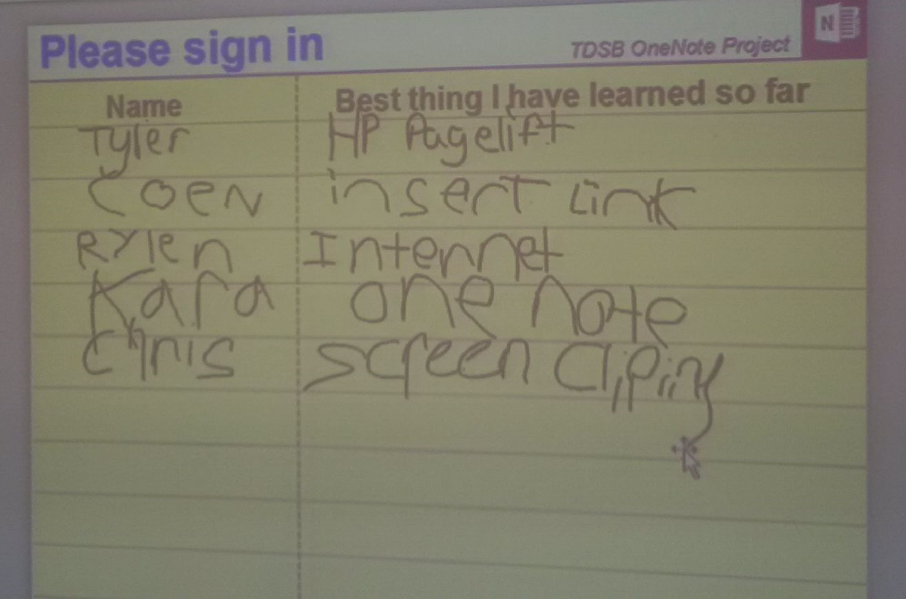 |  |
Some examples of what students shared as being their favourite thing that they learned through participating in this project.
Over the course of our visits in each classroom, students learned how to use a wide variety of tools that OneNote has available and made connections with how these tools can be used to support their ability to organize both their leaning tasks as well as their academic life. For example, in our final session students learned how to create a table and how to use the “Snipping” tool to create a table with visuals.
 |  |

Some examples of how students used the Table tool to organize information. Visuals were created using the “Snipping” tool.
Students then participated in a discussion on how tables are used to organize information and, why using visuals such as those created using the Snipping tool, help make the table even more useful (for example, one student commented: “Because a picture is worth a thousand words!”).
Overall, we had a great time working with the Intermediate students in Mr. DeFazio and Ms. Sharif’s class at JS Woodsworth this year. Thank you for participating in this project and we look forward to hearing all about how you continue to use your tablets and OneNote next year!
Friday, June 5, 2015
The Butterflies have Landed at Park Lane P.S. - co-teach example using alternative access devices (switches)
The Butterflies have Landed at Park Lane
Two teachers at Park Lane, Paula MacLellan and Cindy Price, were involved in the Alternative Access Device Project this year. Both teachers co-planned and co-taught a lesson with Itinerant Resource Teacher, Renée Keberer, around using various software and “switch” devices to further allow their students to interact and engage in lessons and activities. The school received caterpillars this year and thus lessons were created around this theme. Voice output devices were used for the morning welcome and to “call” the butterflies. These devices allow students to have a voice and communicate in a different way. PowerPoint software was used to create Cause and Effect activities and Choice Boards.


Subscribe to:
Posts (Atom)